Welcome to YITH Documentations. This is your first post. Edit or delete it, then start blogging!
Month: October 2020
Changelog
Version 1.3.1 - Released on 09 July 2021
- New: support for WordPress 5.8
- New: support for WooCommerce 5.5
- Update: YITH plugin framework
Version 1.3.0 - Released on 08 Jun 2021
- New: support for WooCommerce 5.4
- New: compatibility with YITH WooCommerce Gift Card
- Update: YITH plugin framework
- Tweak: refactoring PayPal button handler on checkout page
Version 1.2.8 - Released on 05 May 2021
- New: support for WooCommerce 5.3
- Update: YITH plugin framework
- Tweak: refactoring frontend errors handler
Version 1.2.7 - Released on 23 April 2021
- Update: YITH plugin framework
- Fix: check if WooCommerce is installed before initialize the plugin
- Fix: prevent multiple error messages on checkout page
- Fix: prevent wrong error messages
Version 1.2.6 - Released on 16 April 2021
- New: support for WooCommerce 5.2.2
Version 1.2.5 - Released on 13 April 2021
- New: support for WooCommerce 5.2
- Update: YITH plugin framework
Version 1.2.4 - Released on 17 March 2021
- Update: YITH plugin framework
- Tweak: compatibility with WPC Product Bundles for WooCommerce
- Fix: fixed css issues on the checkout page
Version 1.2.3 - Released on 08 March 2021
- New: support for WordPress 5.7
- New: support for WooCommerce 5.1
- Tweak: compatibility with Woo Discount Rules by FlyCart
- Tweak: compatibility with WooCommerce Amazon Pay
- Update: YITH plugin framework
- Fix: fixed issues with webhook
- Fix: fix issue with PHP 7.4 and greater
- Fix: prevent empty address when is set ship to billing address only
- Fix: credit card form render
Version 1.2.2 - Released on 02 February 2021
- New: support for WooCommerce 5.0
- Tweak: improved PayPal load button handler
- Tweak: improved compatibility with old mobile device and browsers
- Update: YITH plugin framework
- Fix: disabled place order button for all payment methods
- Dev: new jQuery trigger 'yith_ppwc_initialize' to reinitialize the script
Version 1.2.1 - Released on 13 January 2021
- Tweak: Improved credit card form usability
- Tweak: Now it possible disable PayPal Debit/Credit Card Button on Cart Page
- Update: Plugin framework
- Fix: Added block form on processing order
- Fix: Credit card labels text domain
Version 1.2.0 - Released on 7 January 2021
- New: support for WooCommerce 4.9
- Update: Plugin framework
Version 1.1.9 - Released on 11 December 2020
- Fix: Missing PayPal button when gateway description is not set
Version 1.1.8 - Released on 09 December 2020
- New: Support for WooCommerce 4.8
- Update: Plugin framework
- Fix: Set correct order status for declined card error
Version 1.1.7 - Released on 24 November 2020
- Fix: Checkout submit button didn't work properly with standard WooCommerce payment methods
- Dev: Move PayPal button render on document ready
Version 1.1.6 - Released on 23 November 2020
- Update: Plugin framework
- Fix: Custom Credit Card load token
- Fix: Issue on single product page when the cart is empty
- Fix: Fixed Amount mismatch when the taxes are rounded
Version 1.1.5 - Released on 10 November 2020
- Fix: Custom Credit Card issues
- Fix: Fixed the payment on My Account page
Version 1.1.4 - Released on 6 November 2020
- Fix: Custom Credit Card
- Fix: Avoid multiple check status for merchant
Version 1.1.3 - Released on 28 October 2020
- New: support for Wordpress 5.6
- New: support for WooCommerce 4.7
- Update: Plugin framework
- Fix: PayPal order validation - Rounded amount difference on transaction request body
- Fix: Display Custom Credit Card tab for enabled merchant
- Fix: Description char length on transaction request
- Fix: PayPal button on single product page - check if the product is purchasable before add button
Version 1.1.2 - Released on 28 October 2020
- Fix: Maximum fields length for request
- Fix: Double check shipping address before a request is sent
Version 1.1.1 - Released on 27 October 2020
- Update: Plugin framework
- Fix: Compatibility issue with WooCommerce PayPal Gateway Checkout
Version 1.1.0 - Released on 23 October 2020
- Fix: SDK url for live environment
- Fix: Unbranded cards tab for Uk store locator
- Fix: Fixed an issue with the amounts inside the json request
Version 1.0.0 - Released on 15 October 2020
- Initial Release
Manual localization
Translate through our easy-to-use platform!
If your language is not included in the plugin package, no worries, you can translate it on your own thanks to our platform. Go to translate.yithemes.com and just follow three simple steps:
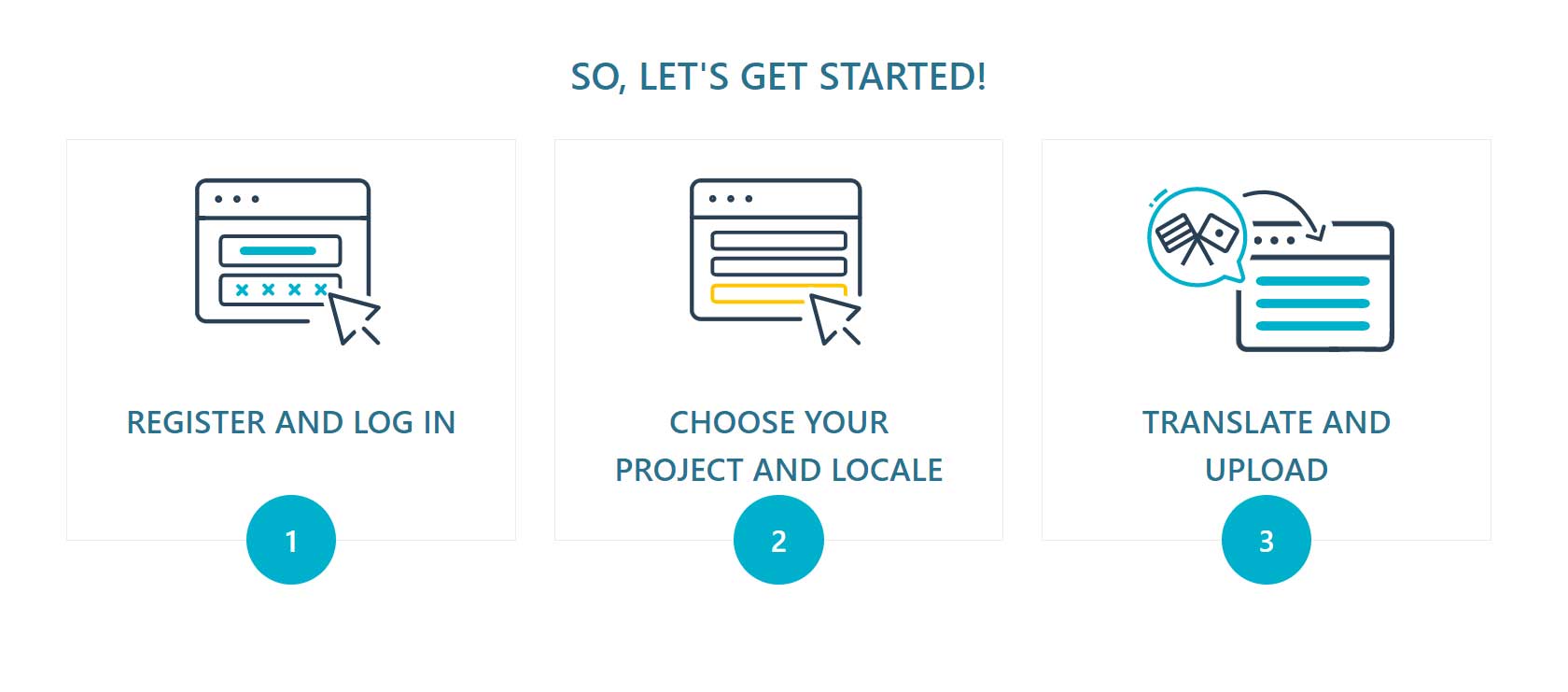
Once you’re done with translating, you will be able to export your translation as a file that is ready to be uploaded into the languages folder of your plugin package and start using it immediately.
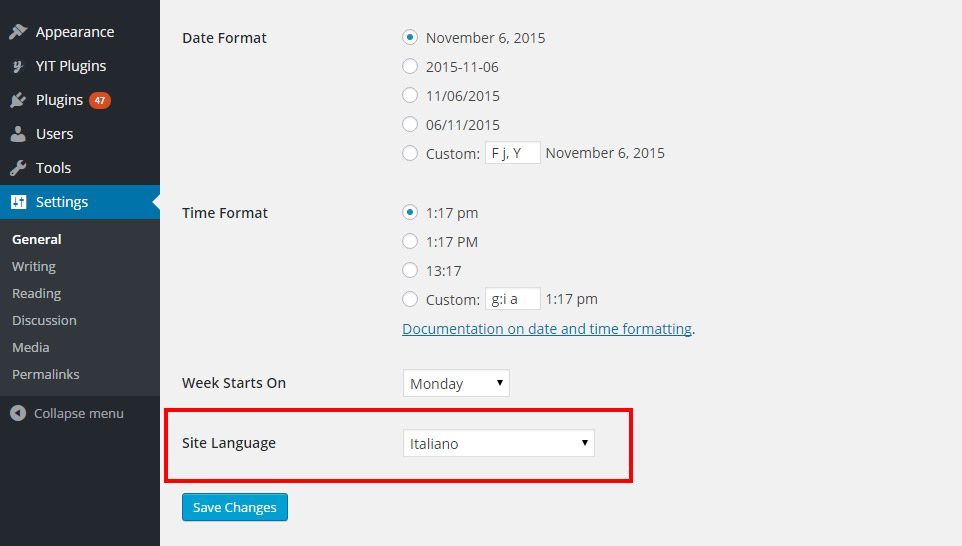
Don’t forget to change the language of your WordPress site from Settings > General > Language to make sure the translation shows up.
In the meantime, our Translation team will review your translation and once approved, it will be made available in the plugin package, so you will be able to always find it whenever you update the plugin!
So, let’s start from here: translate.yithemes.com and for a detailed guide on how to use our Translate platform, please, refer to this page.
Translate with Poedit
If you prefer translating using Poedit, a free translation editor software, you can consider this as an alternative option.
The original language file of the plugin is yith-paypal-payments-for-woocommerce.pot and it is included in the "languages" folder of the plugin. If it does not include your own language you have to translate following these steps.
Download Poedit, the software through which you can translate the plugin text strings. Now open the file yith-paypal-payments-for-woocommerce.pot and click on the "Create new translation" button.
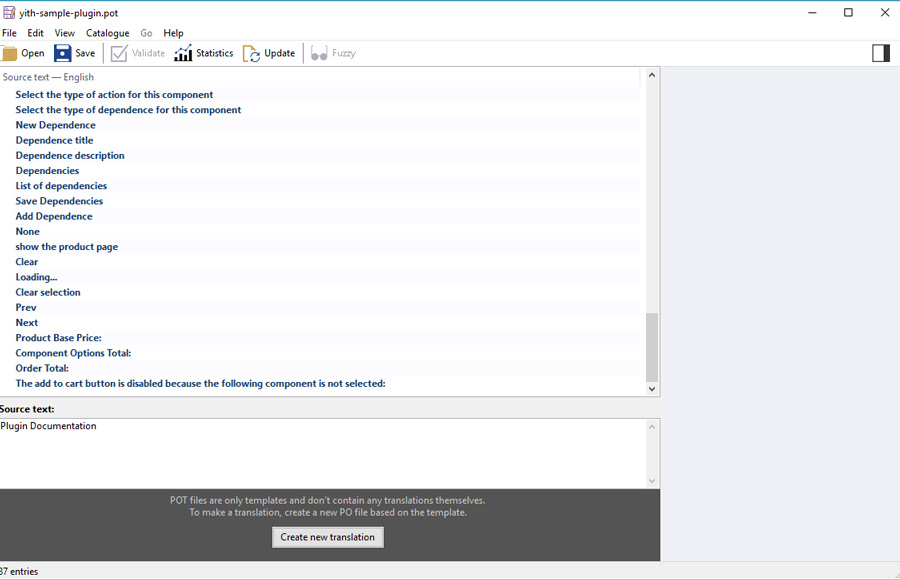
Select the language in which you want to translate the plugin.
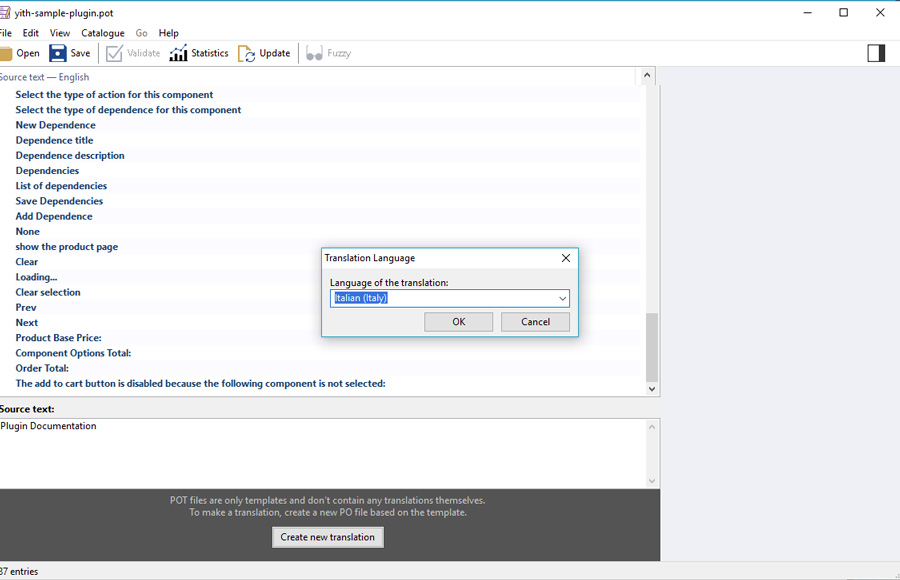
Now translate the strings one by one. Once finished, click on the "Save" button and rename the file adding the slug of the plugin to the suggested file name (e.g., yith-paypal-payments-for-woocommerce-it_IT).
If everything worked fine, the .po and .mo files will be created automatically in the "languages" folder of the plugin.
If you want to display your new language in an online installation, don't forget to load both files (.po
and .mo) via FTP.
Don’t forget to change the language of your WordPress site from Settings > General > Language to make sure the translation shows up.
Edit an existing translation
If you want to edit an existing translation, copy the .po file that you find in the plugin "Languages" file (plugin name > languages) and paste it into WordPress languages folder (wp-content > languages > plugins).
Edit the .po file and save the changes. This will generate the .mo file and you will be able to see your updated translation in your site.
If you worked on the .po file outside of the plugin folder, make sure you copy and paste also the .mo file that has been generated automatically after saving the changes in the .po file.
WPML Localization
Big thanks to WPML team for sharing these helpful documentation with our customers
Getting started
To translate YITH PayPal Payments for WooCommerce with WPML, you need the WPML core plugin, as well as the WPML Multilingual & Multicurrency for WooCommerce addon. To get both plugins, buy the WPML Multilingual CMS package.
If you’re new to WPML, check out its getting started guide to learn how it works before following this tutorial.
To learn more about translating your WooCommerce store, see how to translate WooCommerce with WPML.
Translating YITH PayPal Payments for WooCommerce
To translate texts in the YITH PayPal Payments for WooCommerce with WPML, go to WPML → Translation Dashboard and scroll down to the Other texts (Strings) section. There, search for any texts related to YITH PayPal Payments for WooCommerce that appear on your website and select them.
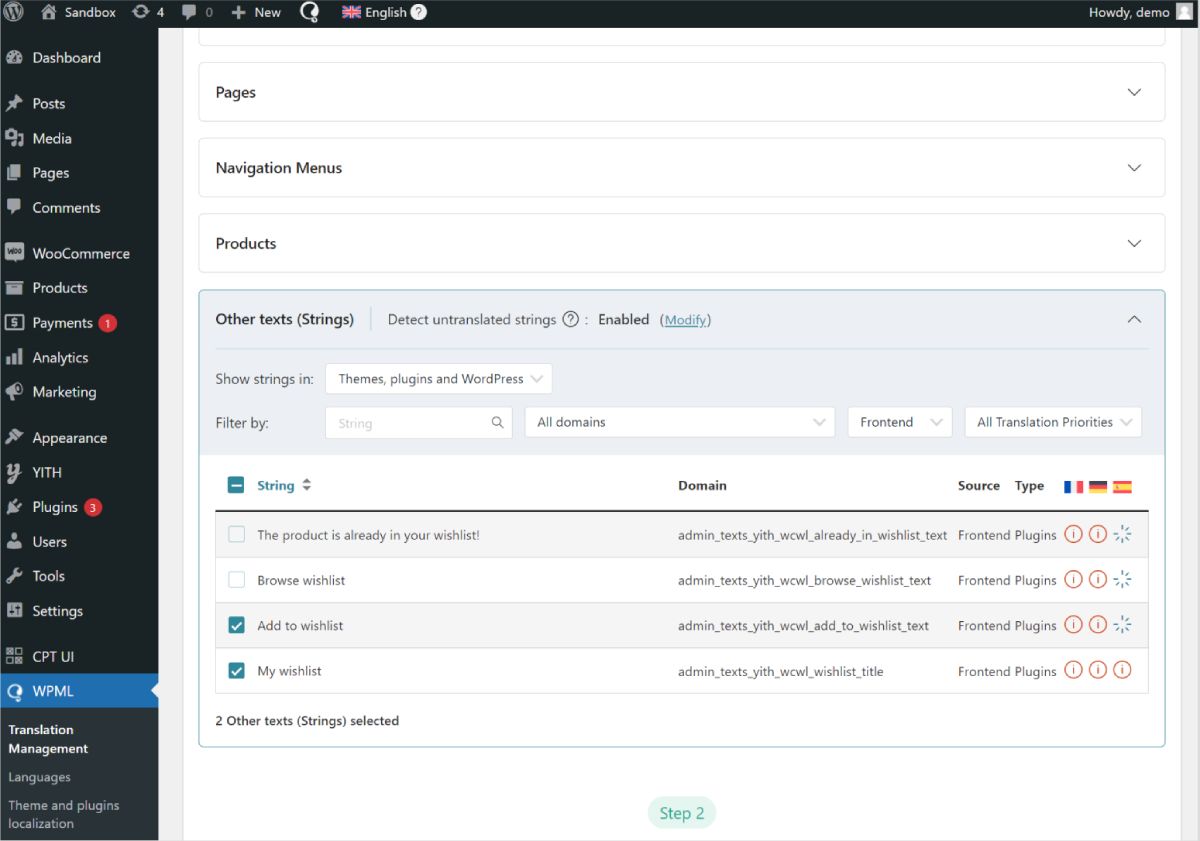
If you don’t see some of your texts, go to your website, navigate to the page with your missing texts, and switch languages. As you view the page, WPML will automatically detect the missing texts and populate them in the strings section.
Once you select all your strings, the next step is to choose your translation method. To get the best translations, we recommend translating automatically using WPML’s most accurate AI translator – Private Translation Cloud (PTC).
PTC is like your own team of expert translators with a deep understanding of your content and niche. It’s WPML’s proprietary AI technology, and even includes a translation quality guarantee: If you’re not satisfied with PTC’s translations, you’ll get a full refund.
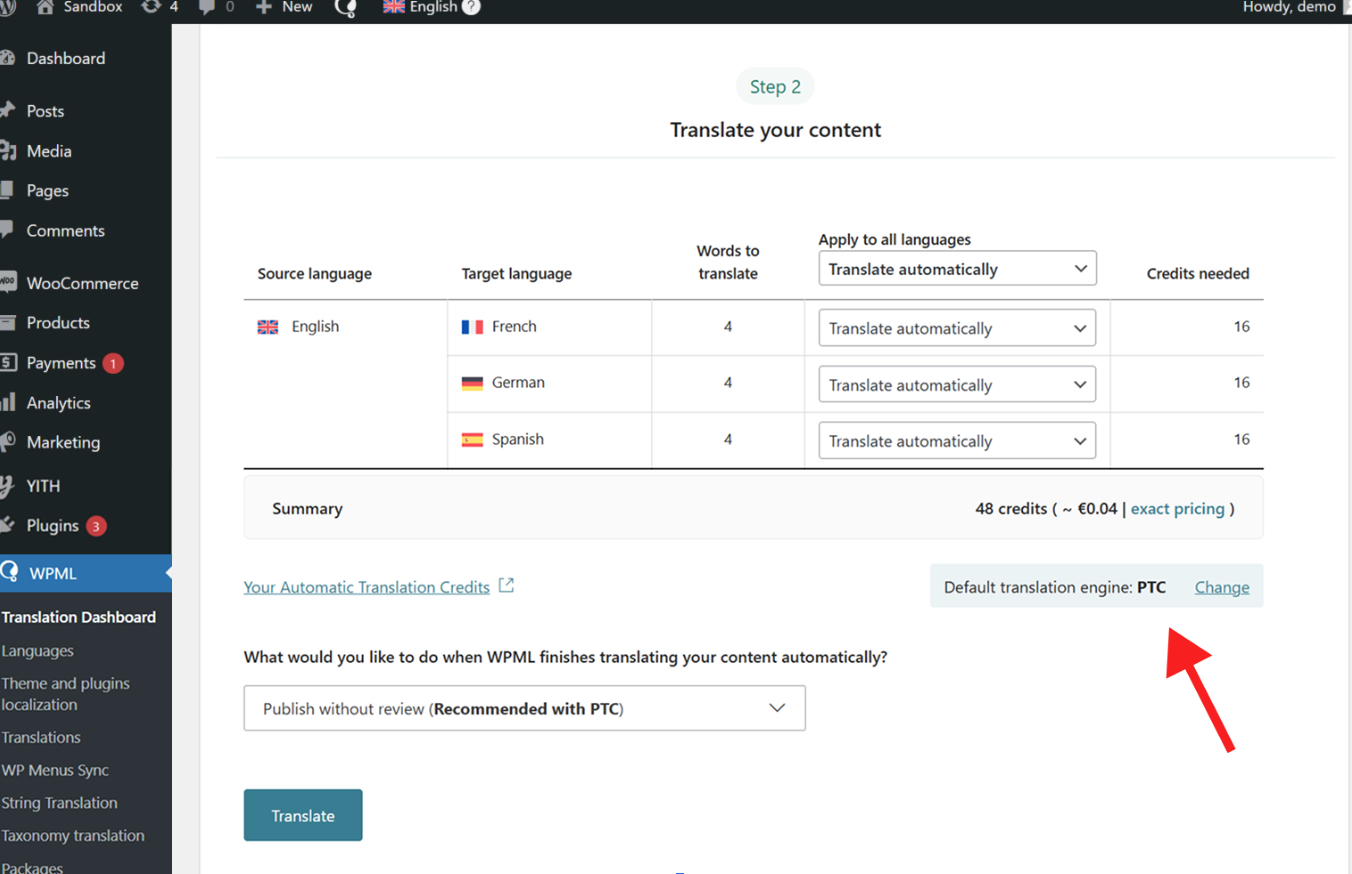
Once WPML finishes translating your content, your texts will appear translated on your website when switching languages.
If at any moment you want to edit your AI translations, you can always make changes using the Advanced Translation Editor.
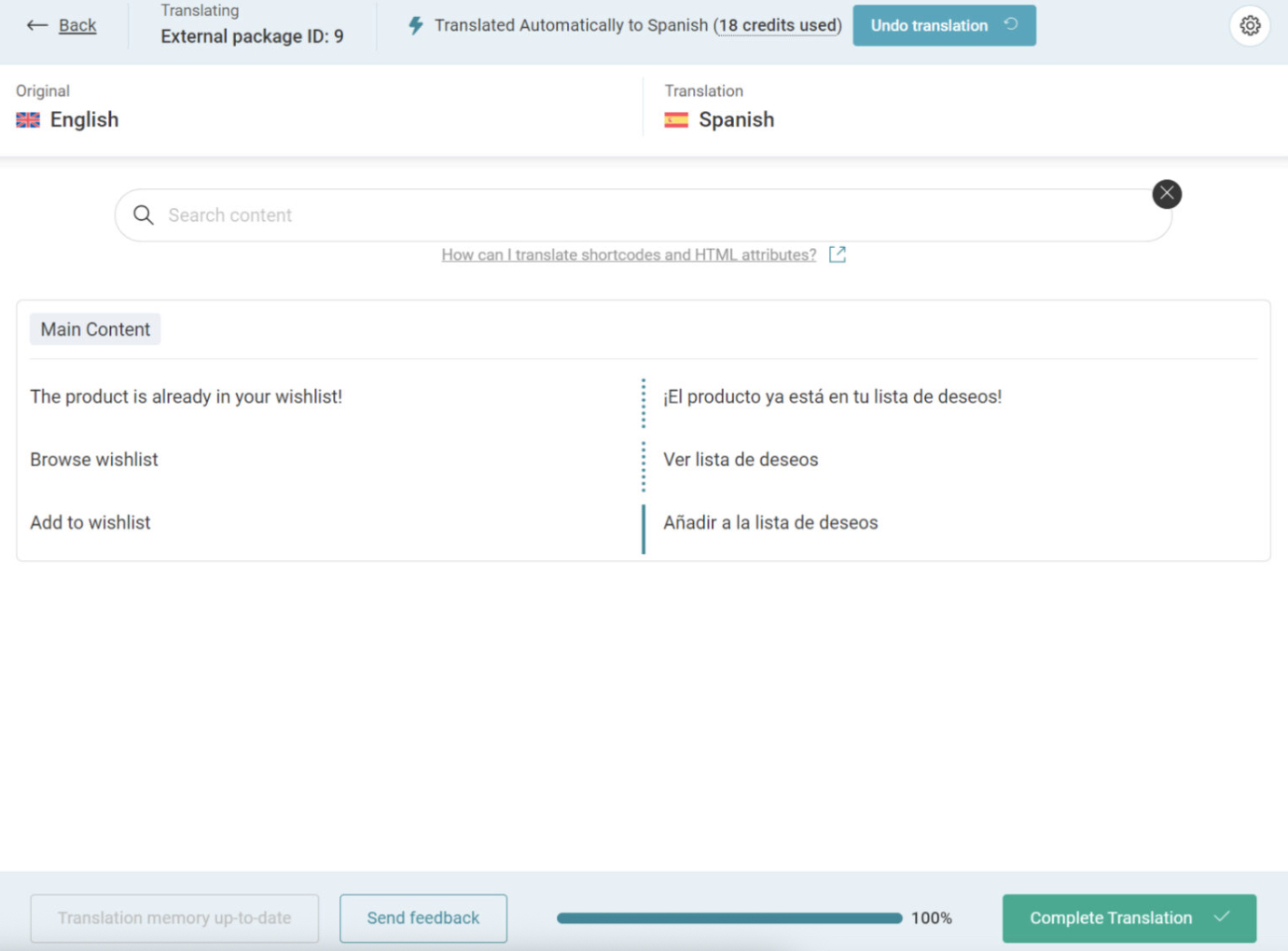
Just visit the translated page you want to edit on the front-end, and click Edit translation in the top admin bar. This will open the editor, where you can make any necessary changes.
Settings
In the plugin settings, you will be able to configure this payment gateway.
Go to YITH > PayPal Payments > Settings.
1. Enable the gateway
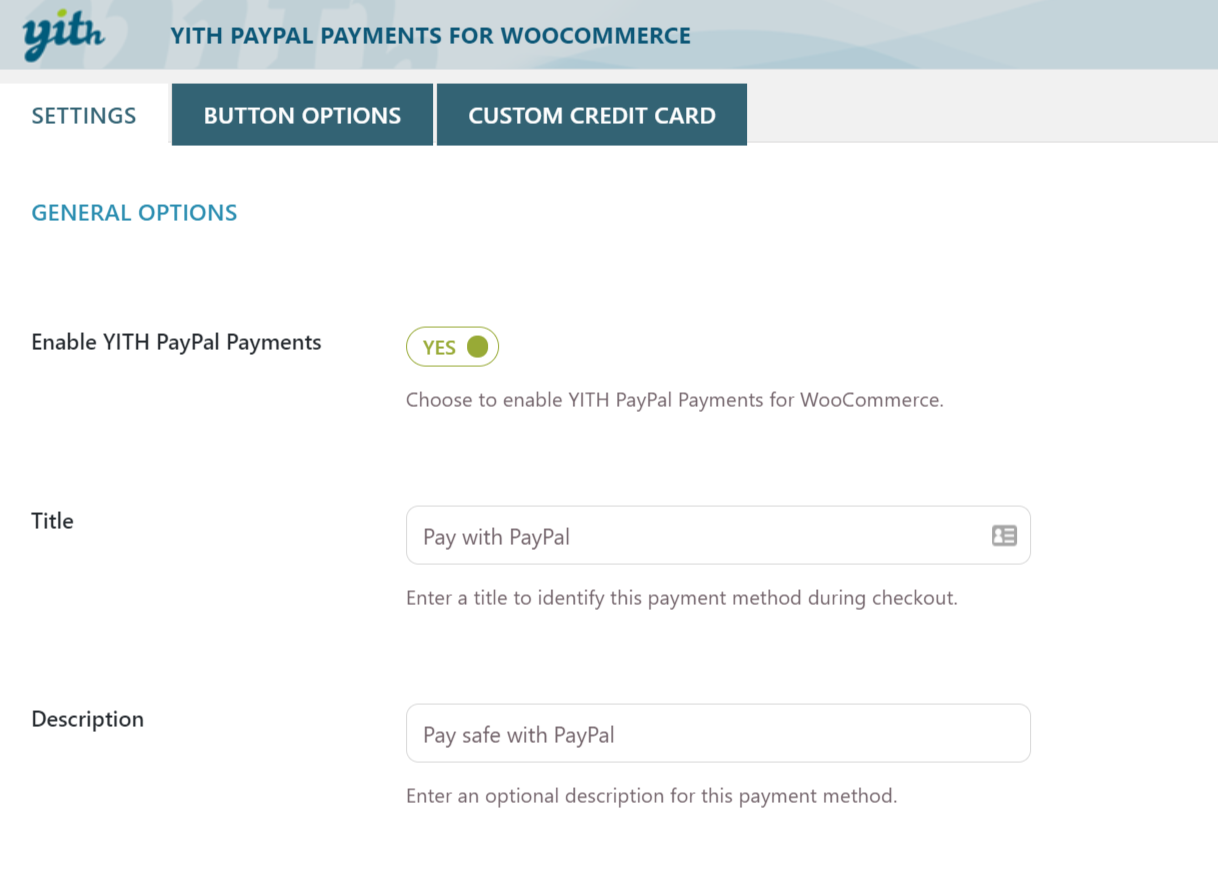
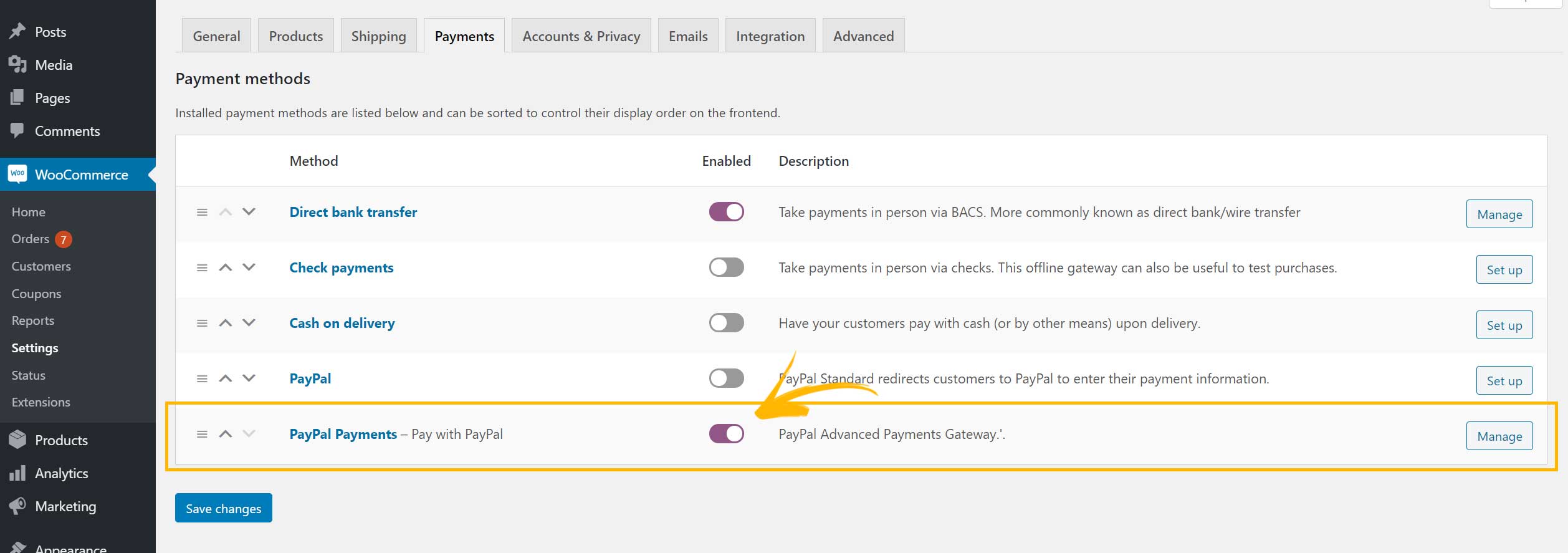
Enable YITH PayPal Payments: here you can enable the new payment method, but keep in mind you can also enable the gateway from the gateways’ list in WooCommerce > Settings > Payments > PayPal Payments.
The two options will be synced, so you can enable/disable the gateway from any of the two locations.
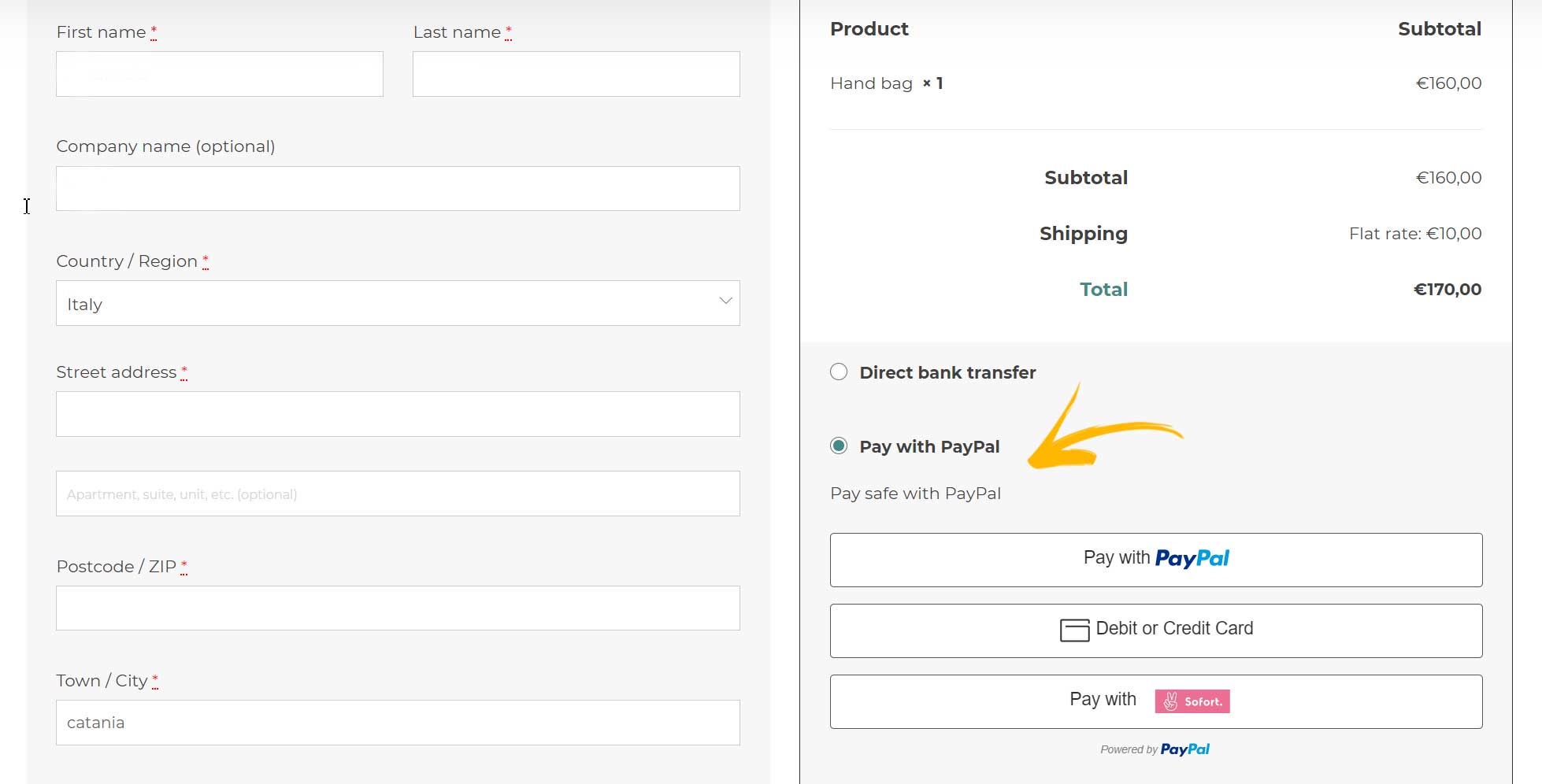
The next two options allow you to customize how this new payment gateway will look like on the checkout page:
- Title: give a name to this payment gateway.
- Description: here you can enter a custom description of what your customer will see on the checkout page.
2. Connect a PayPal account
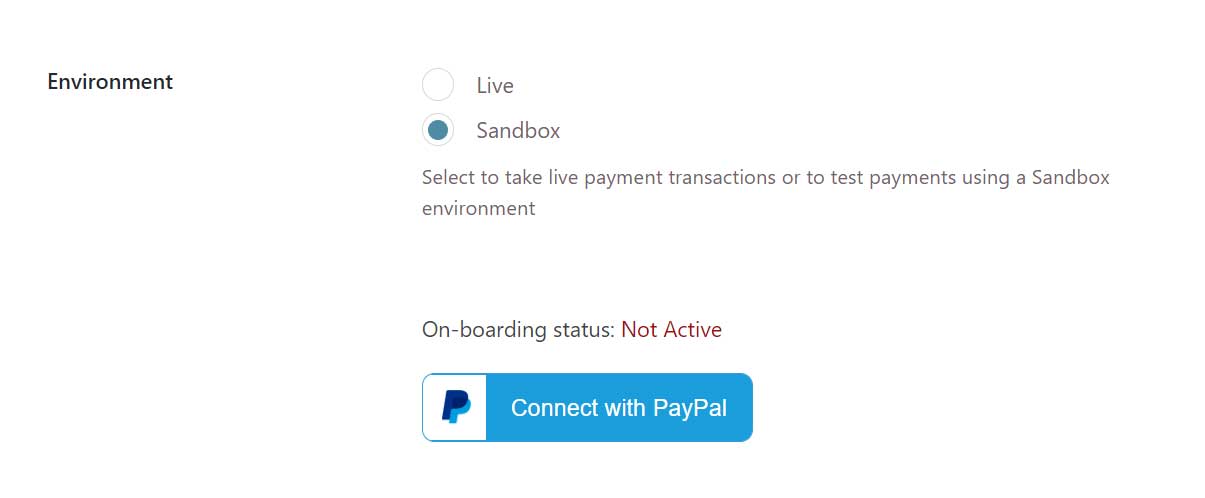
Now, you can connect the plugin to your PayPal account. Select first whether you want to use a live or a sandbox environment, then click on Connect with PayPal.
Please, note your PayPal account must be a business account. If it’s not, PayPal will suggest you to convert it into a business account. You can also create a new account from this popup if you don’t have any.
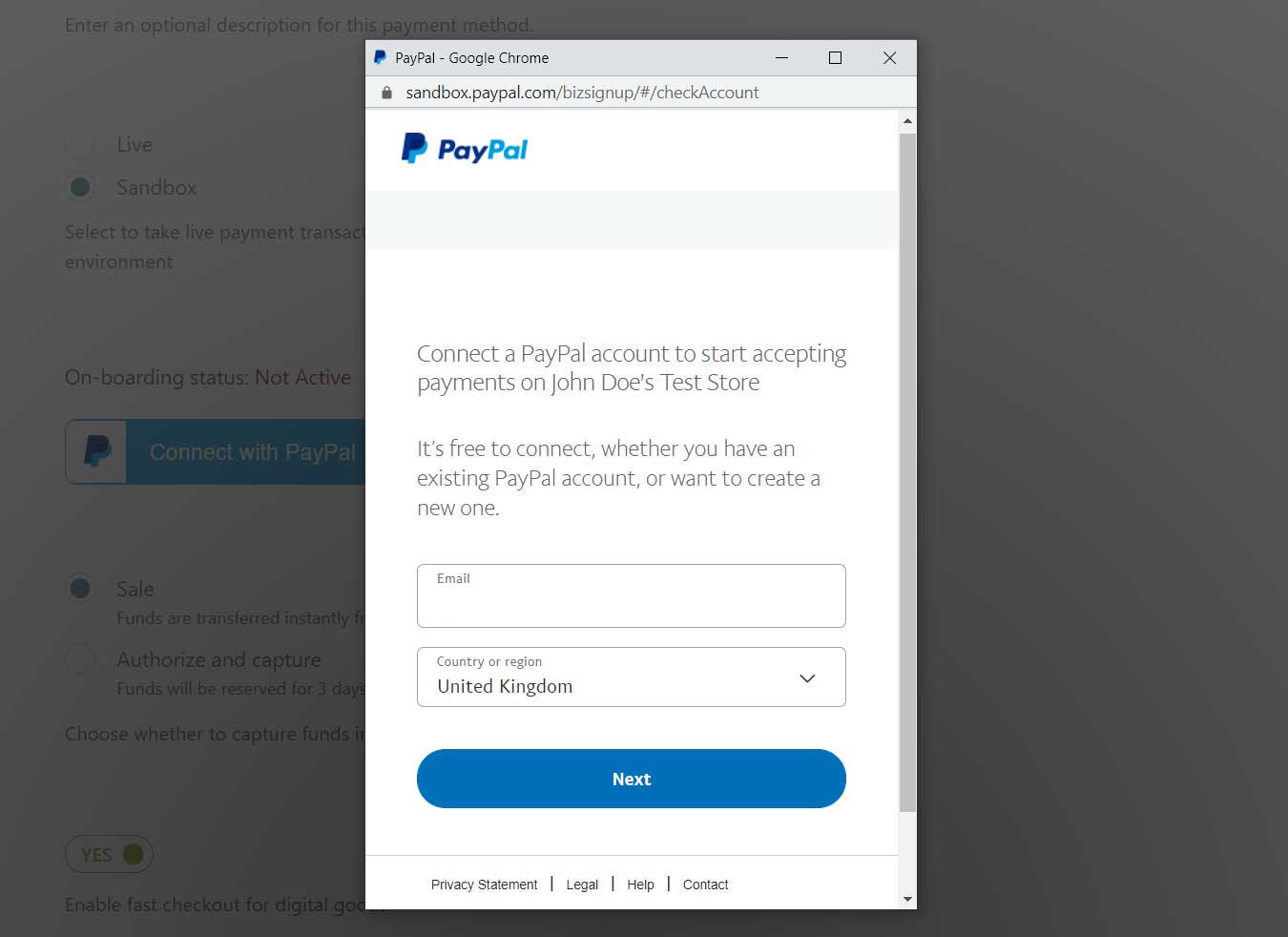
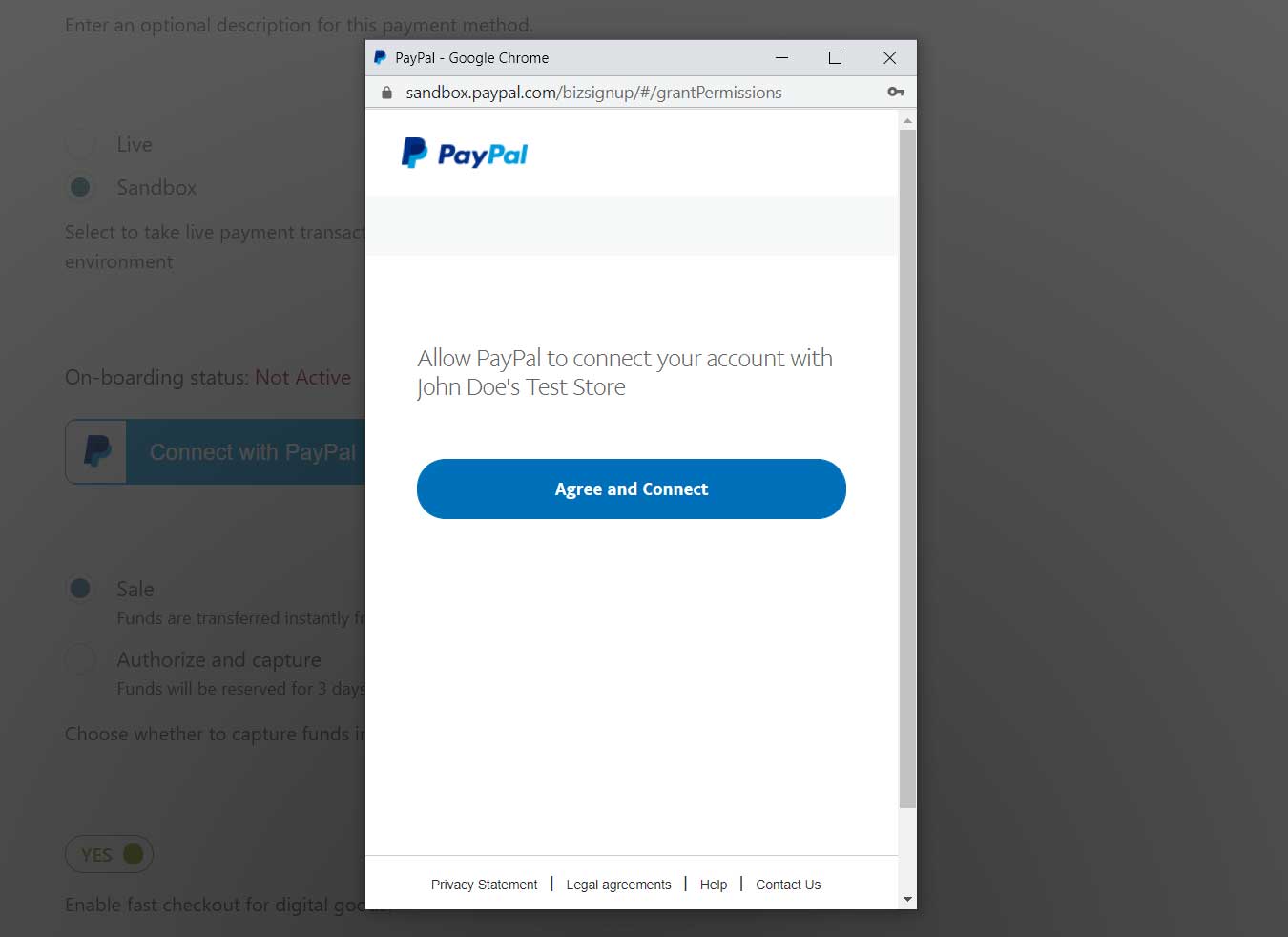
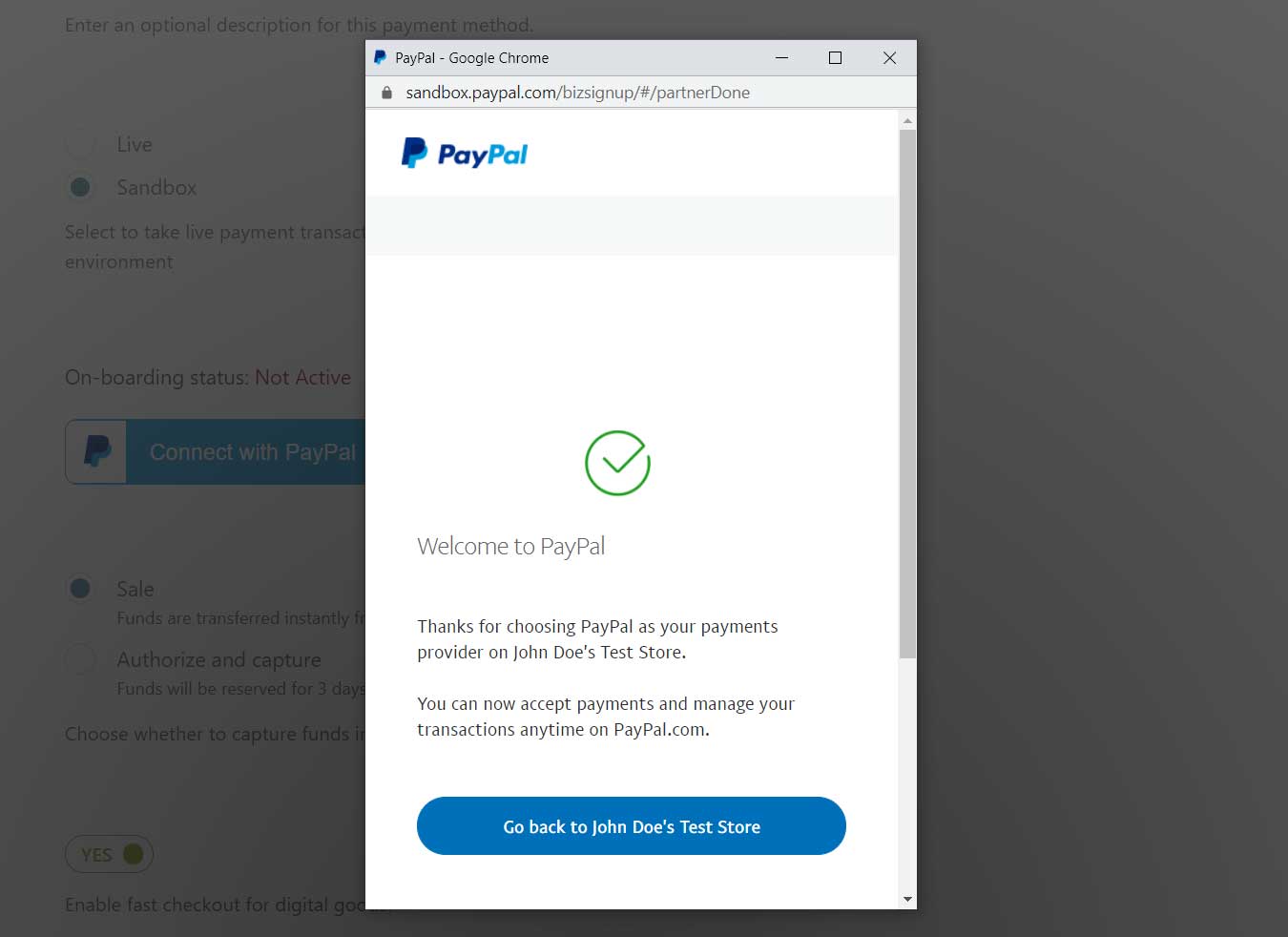
Once connected, this is how it will look like in the plugin panel:
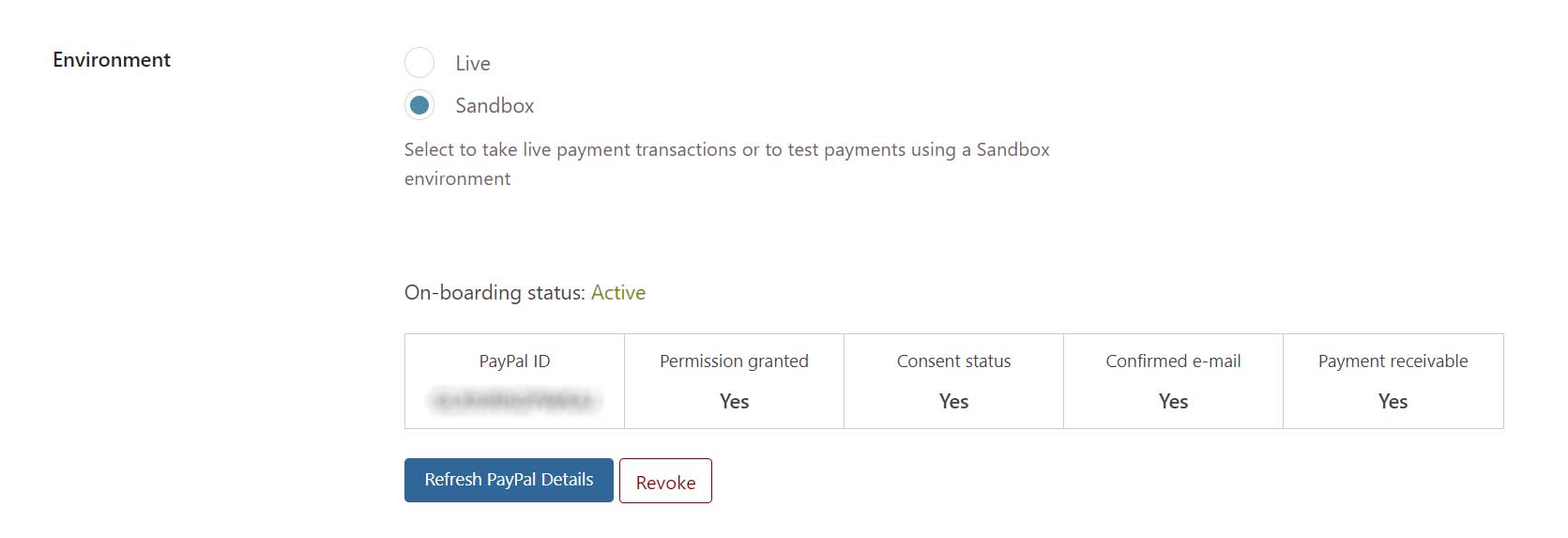
You can click on Revoke to disconnect it from the current PayPal account and start the process again.
3. Sale or authorize and capture
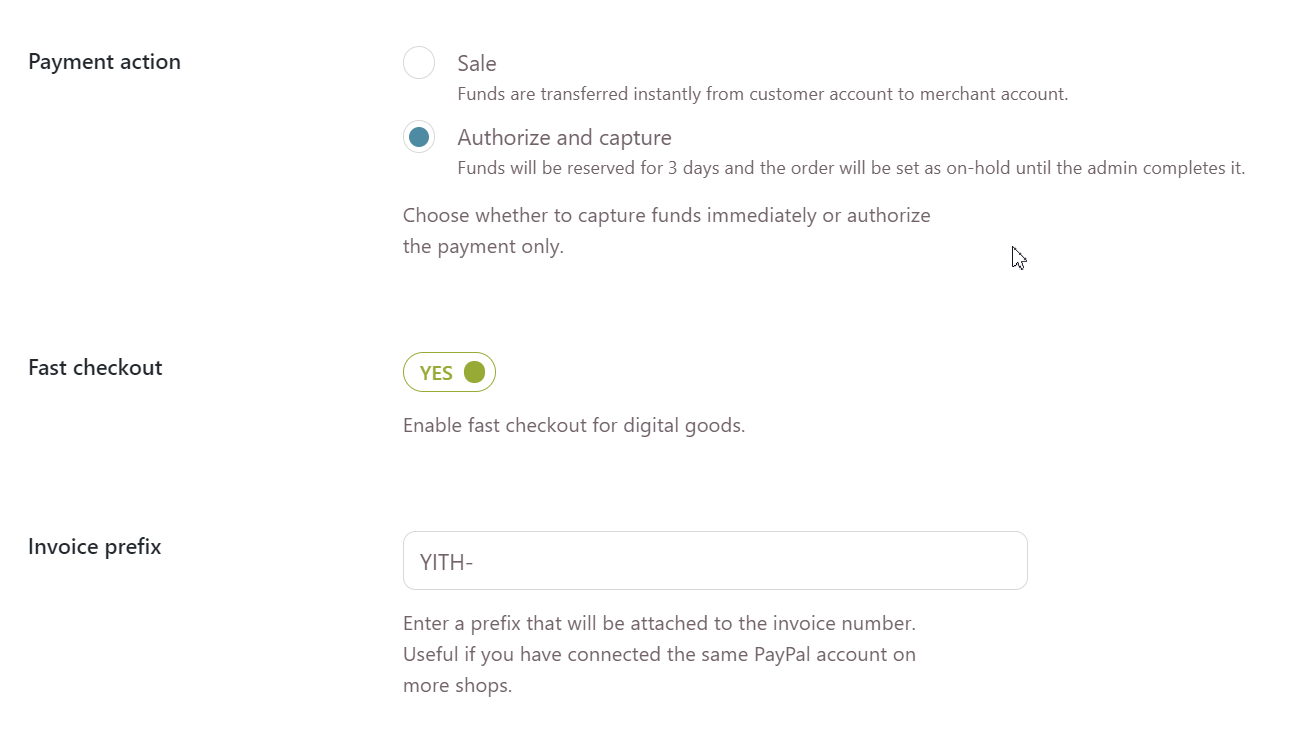
Payment action: choose whether to capture funds immediately or authorize the payment only:
- Sale: funds are transferred instantly from customer account to merchant account.
- Authorize and capture: funds will be reserved for 3 days and the order will be set as on-hold until the admin completes it.
Please, refer to this page for a more detailed explanation.
4. Fast checkout
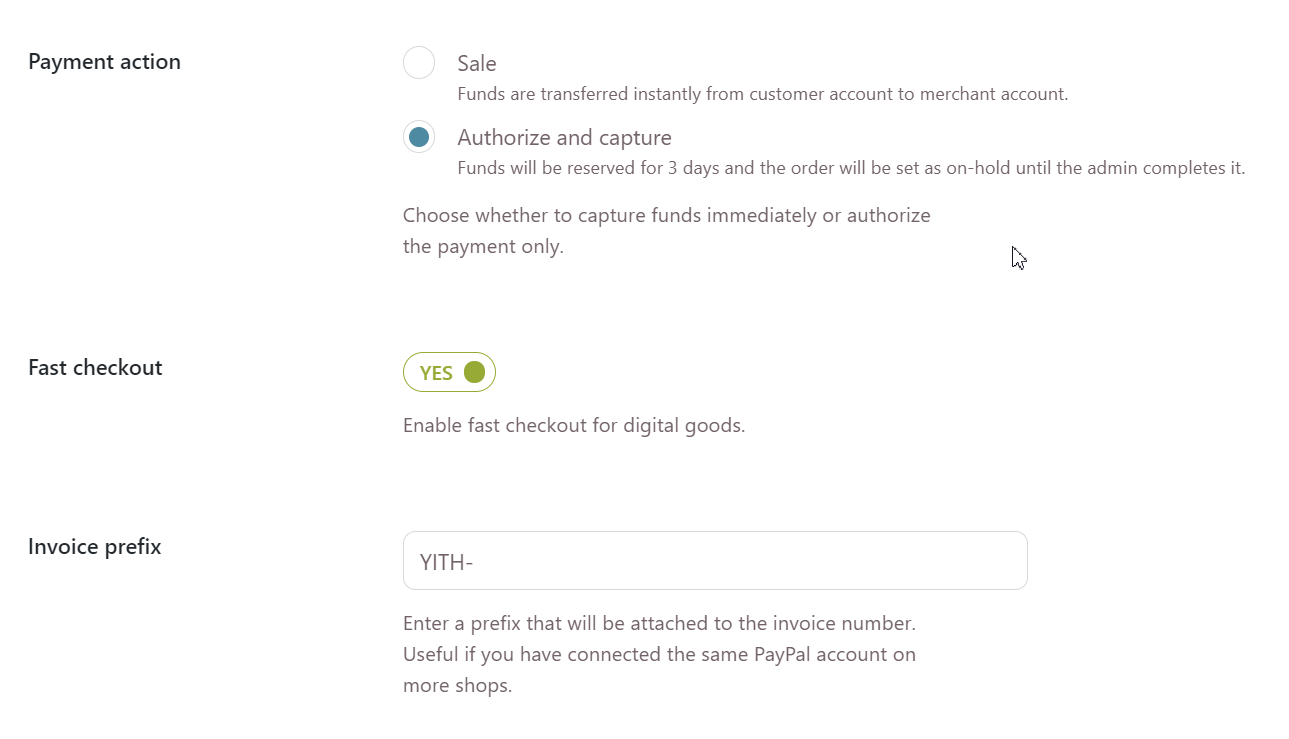
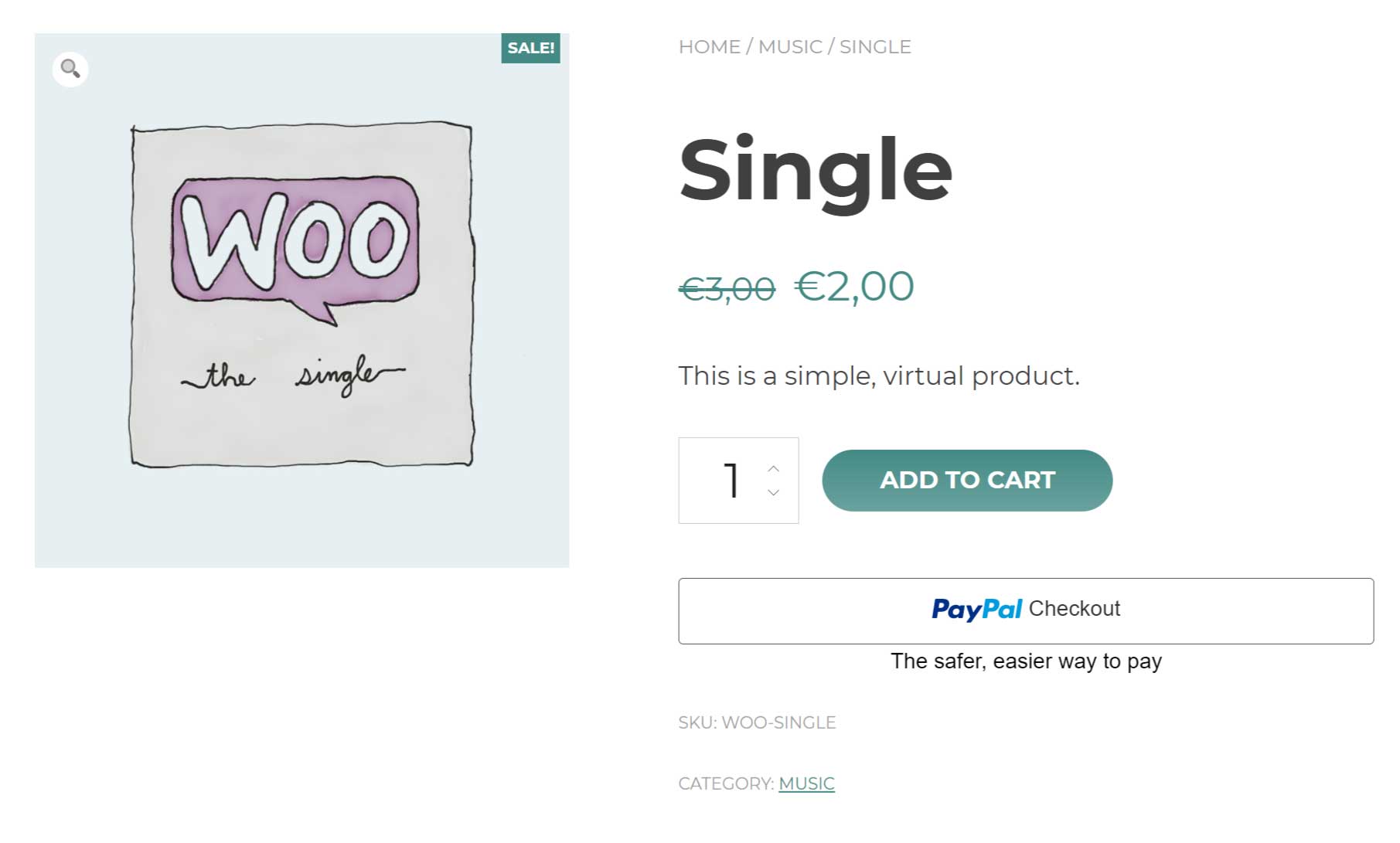
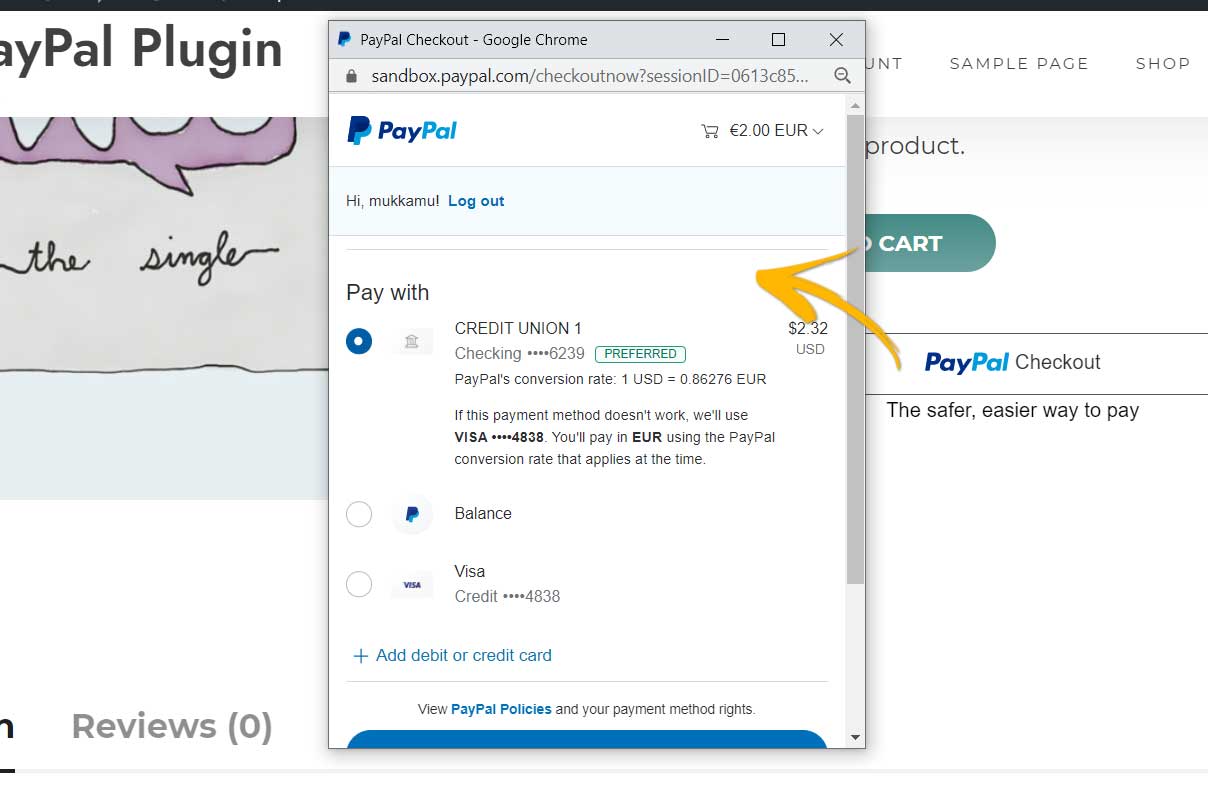
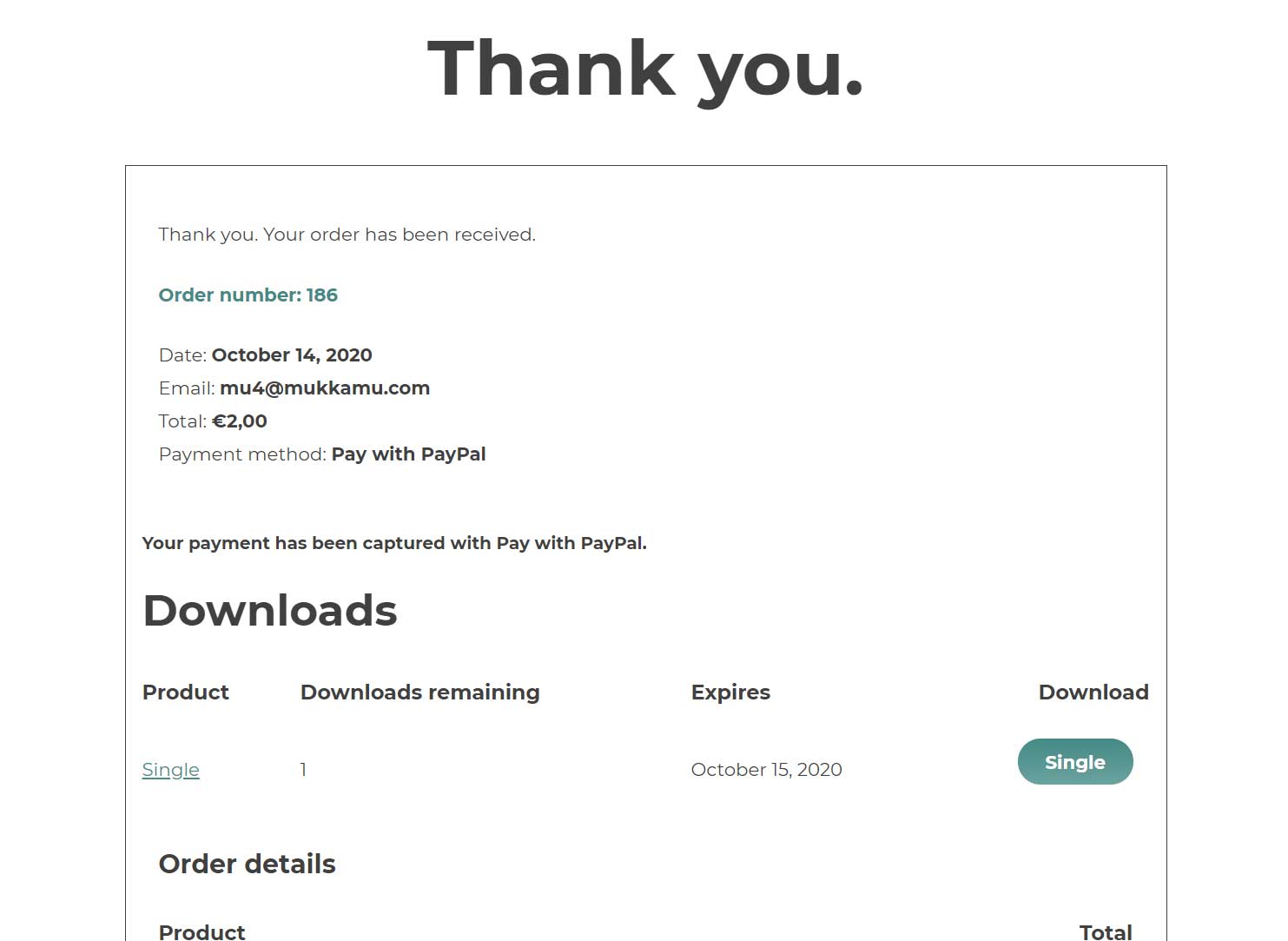
Fast checkout: Enable fast checkout for digital goods and show a PayPal Checkout button on the product page. This option allows your customers to skip the Cart page and go directly to the checkout. If they have previously authorized PayPal, the payment will be immediately charged.
5. Invoice prefix
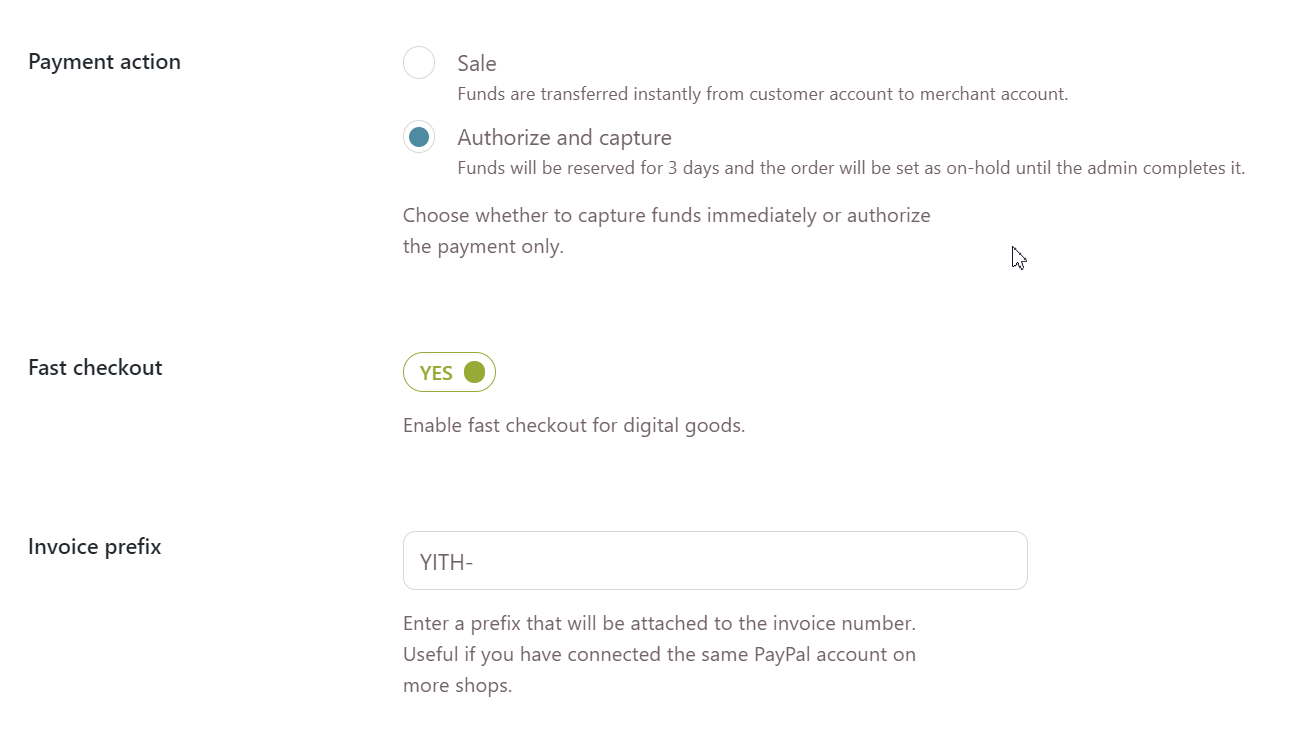
Invoice prefix: Enter a prefix that will be attached to the invoice number. Useful if you have connected the same PayPal account on more shops.
Pre-autorized payments
PayPal allows you to either charge your customers immediately on checkout or to pre-authorize the payment and charge the funds later.
You can choose this setting from the General options page in YITH > PayPal Payments for WooCommerce > Settings > Payment action.
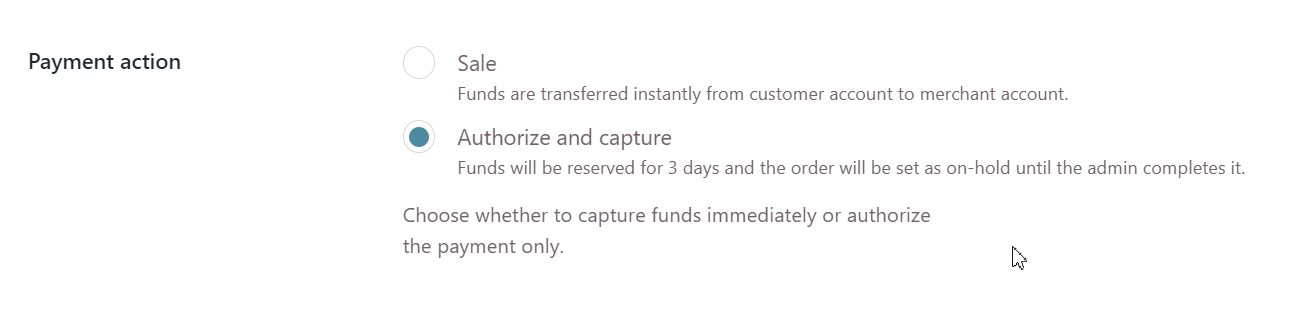
Select Sale if you want that the funds are immediately transferred from the customer to the merchant account.
Select Authorize and capture if you want to authorize the payment first and charge your users at a later time. How does this work exactly?
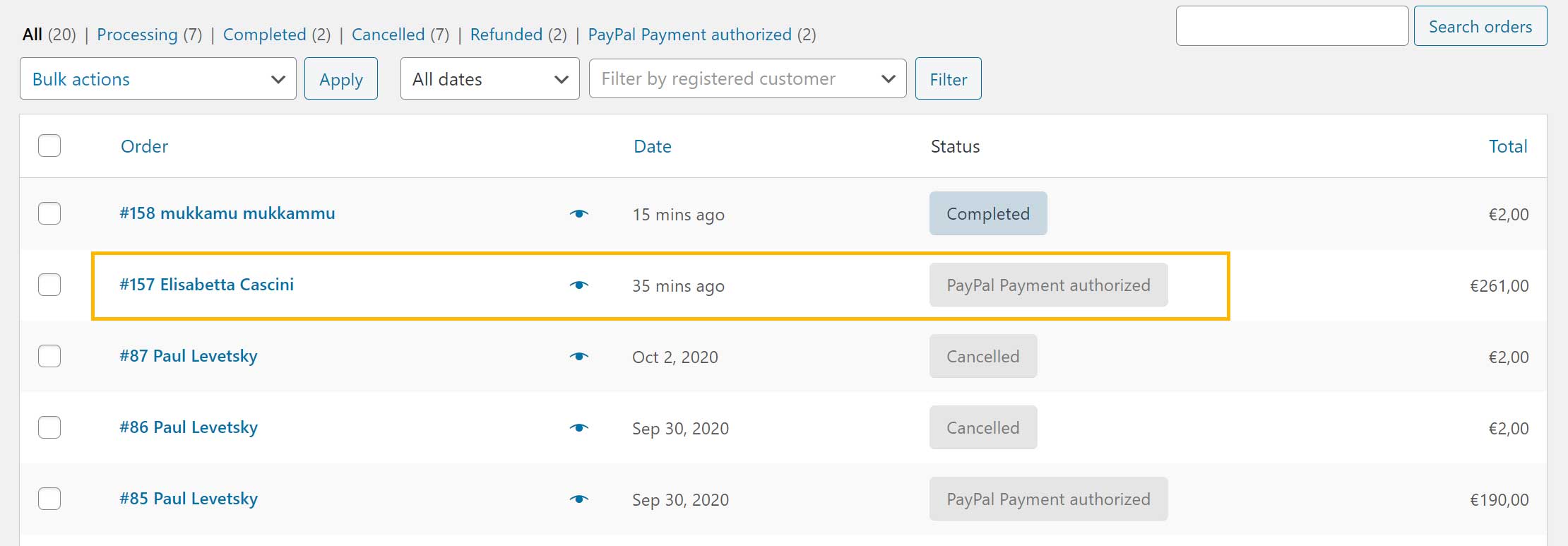
Whenever your users place an order, it will be recorded with the status PayPal payment authorized.
When you’re ready to charge the funds, you can open the order page and set the order status to either Processing or Completed and the transaction will go through.
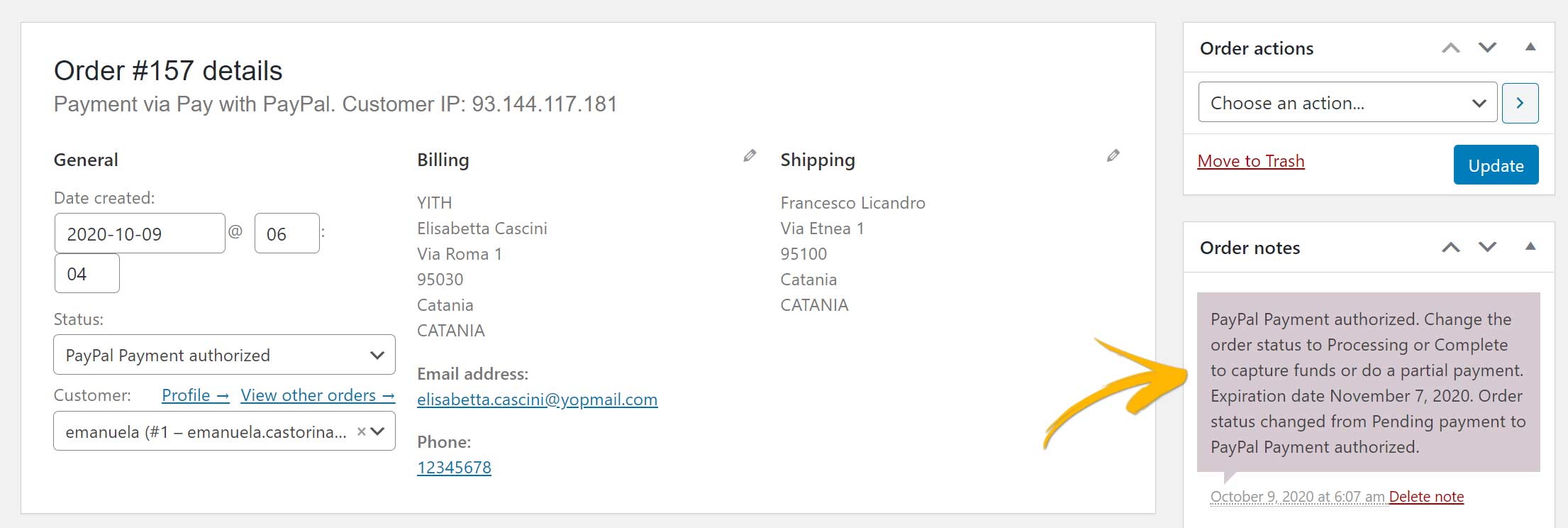
The amount agreed in checkout will be guaranteed for 3 days, but the authorization expires in 30 days, after which you will no longer be able to charge the user from this order, they will have to place a new one.
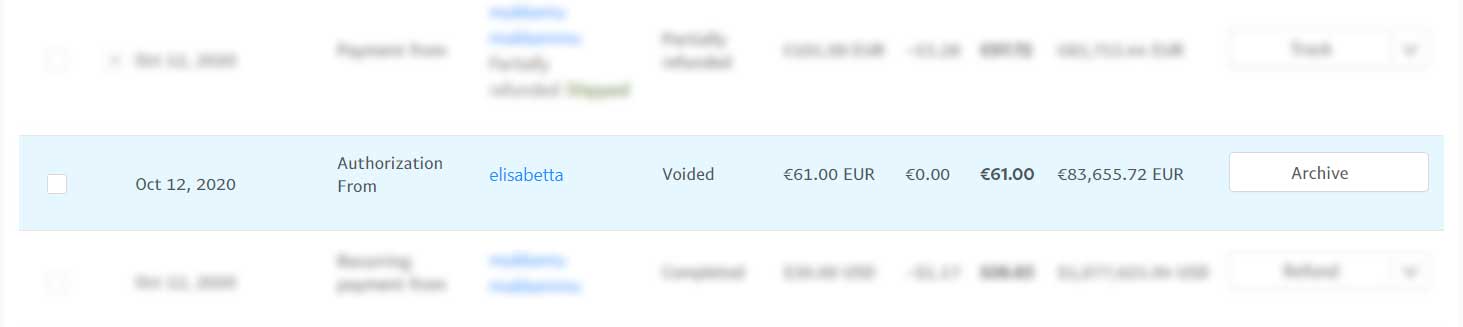
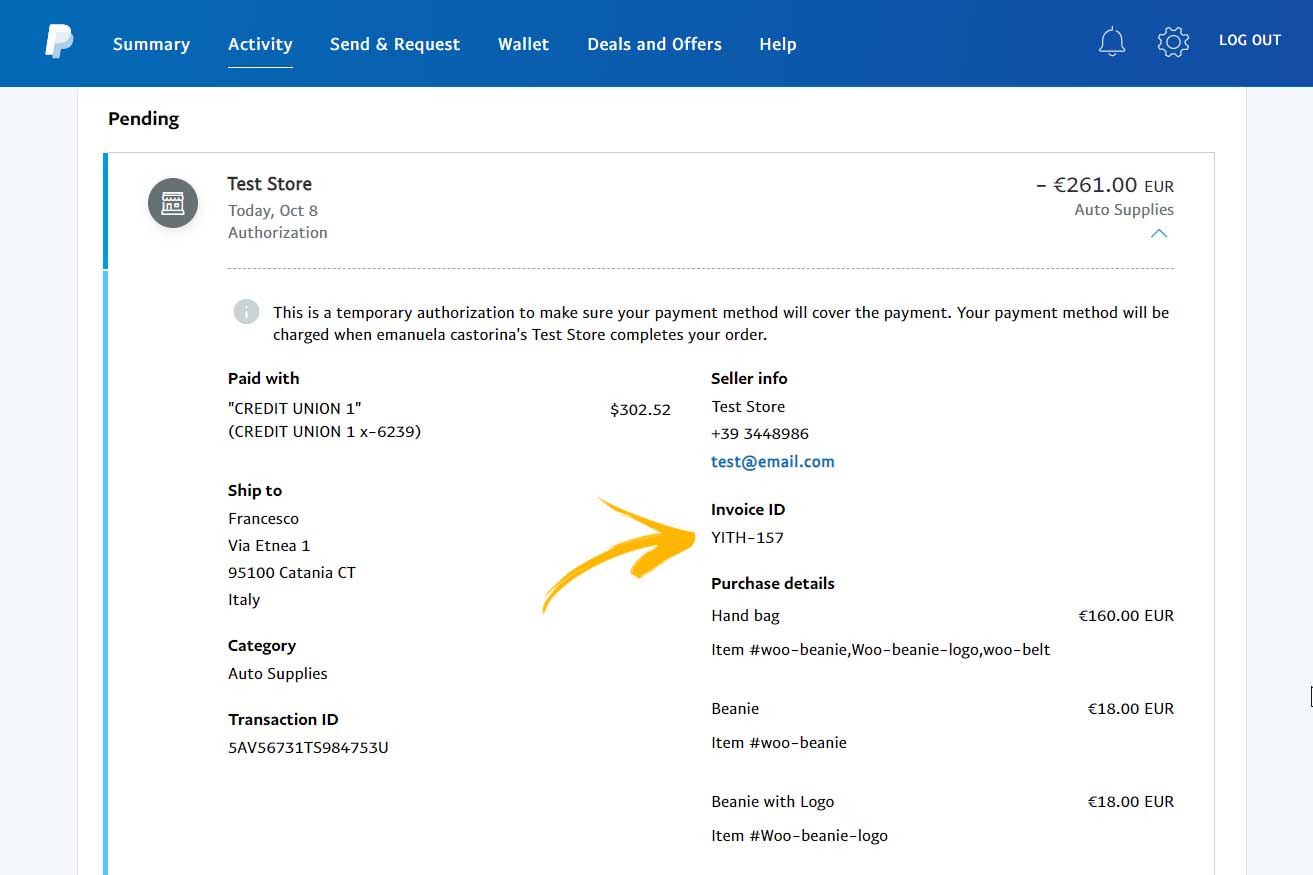
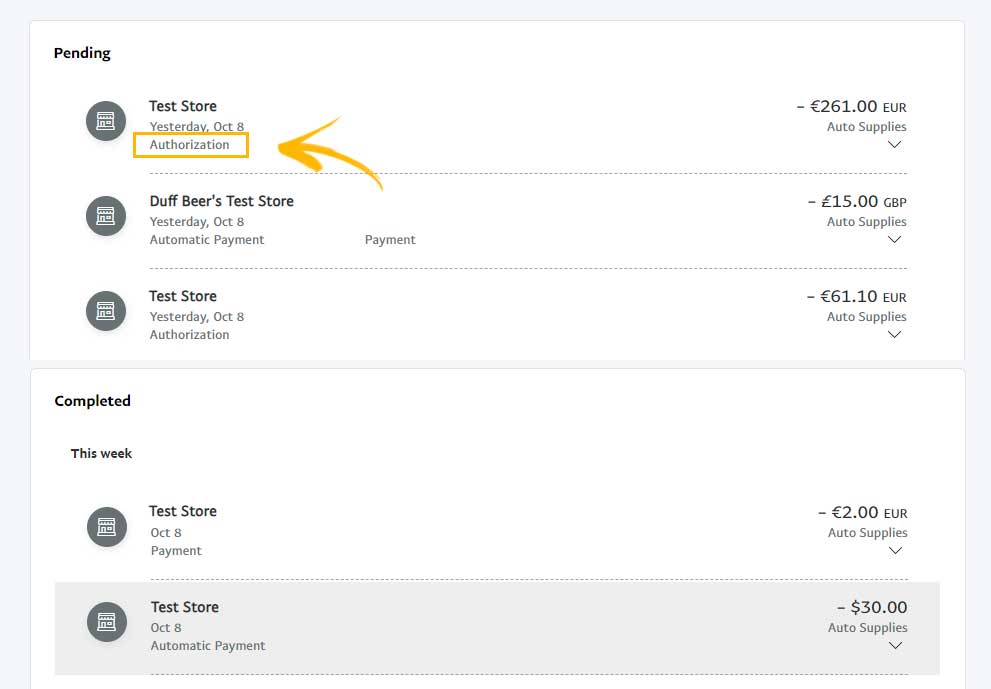
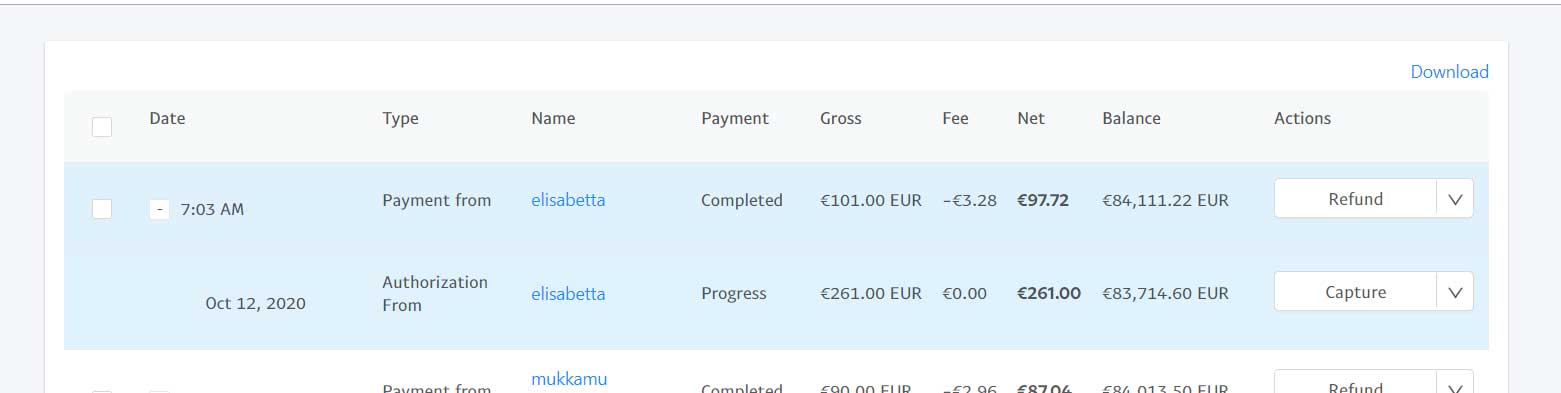
The order will appear as an Authorization both in the customer’s and merchant’s accounts, until it is completed.
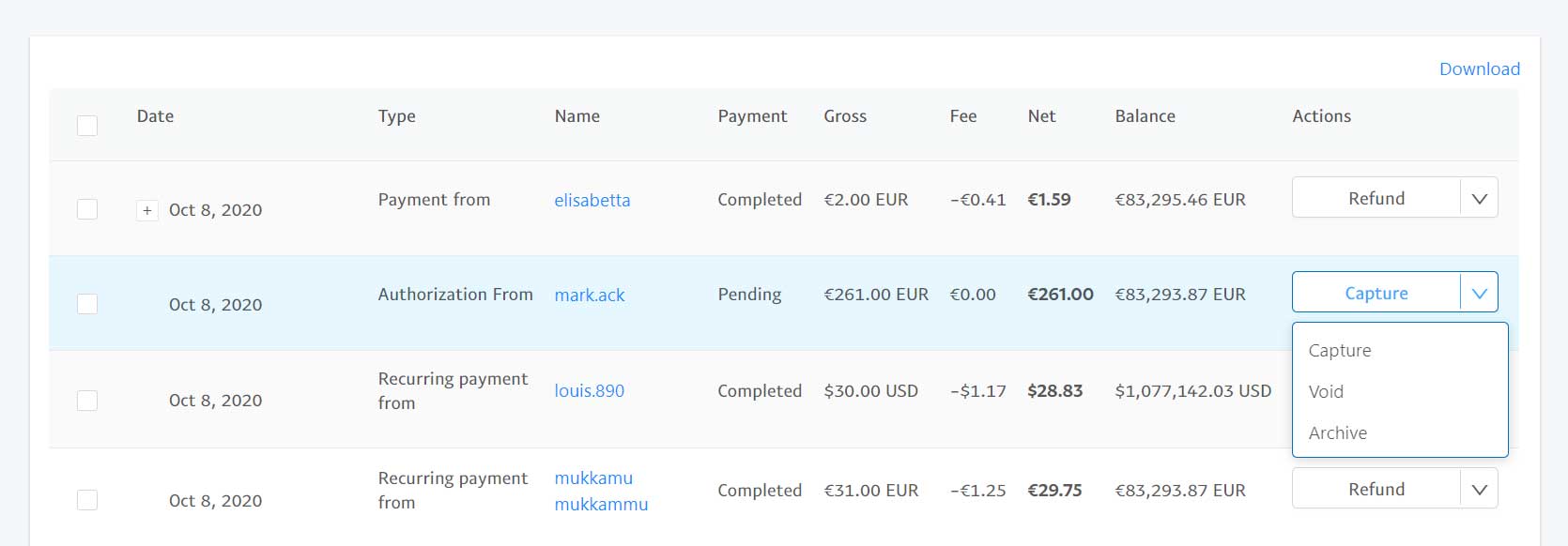
The merchant will be able to capture the authorized payment also from the PayPal account > Activities as shown in the screenshot above.
Button options
From YITH > PayPal Payment > Button options tab you can configure all the button options, let’s see them one by one.
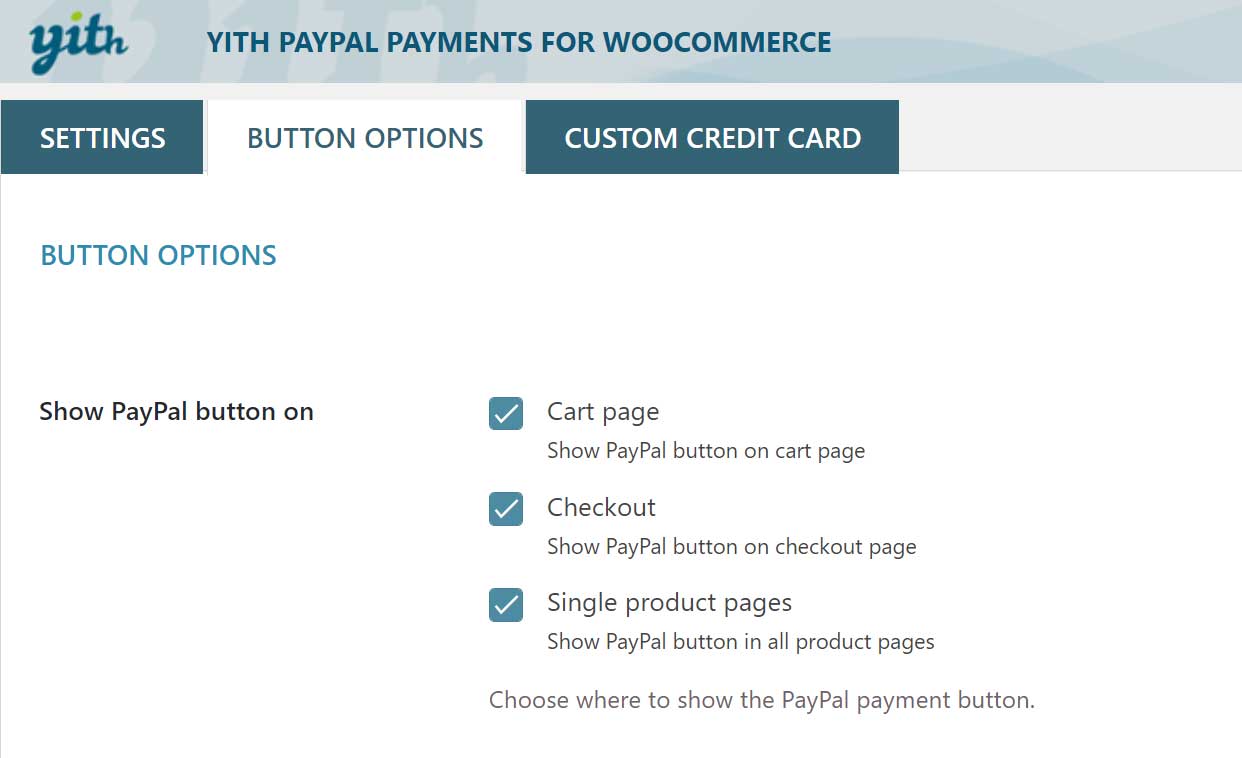
Show PayPal button on: select if yo want to display the PayPal button on all or just some of the following:
- Cart page
- Checkout
- Single product pages
The payment flow changes slightly based on where the button is placed. Please, refer to this page to learn more about the differences.
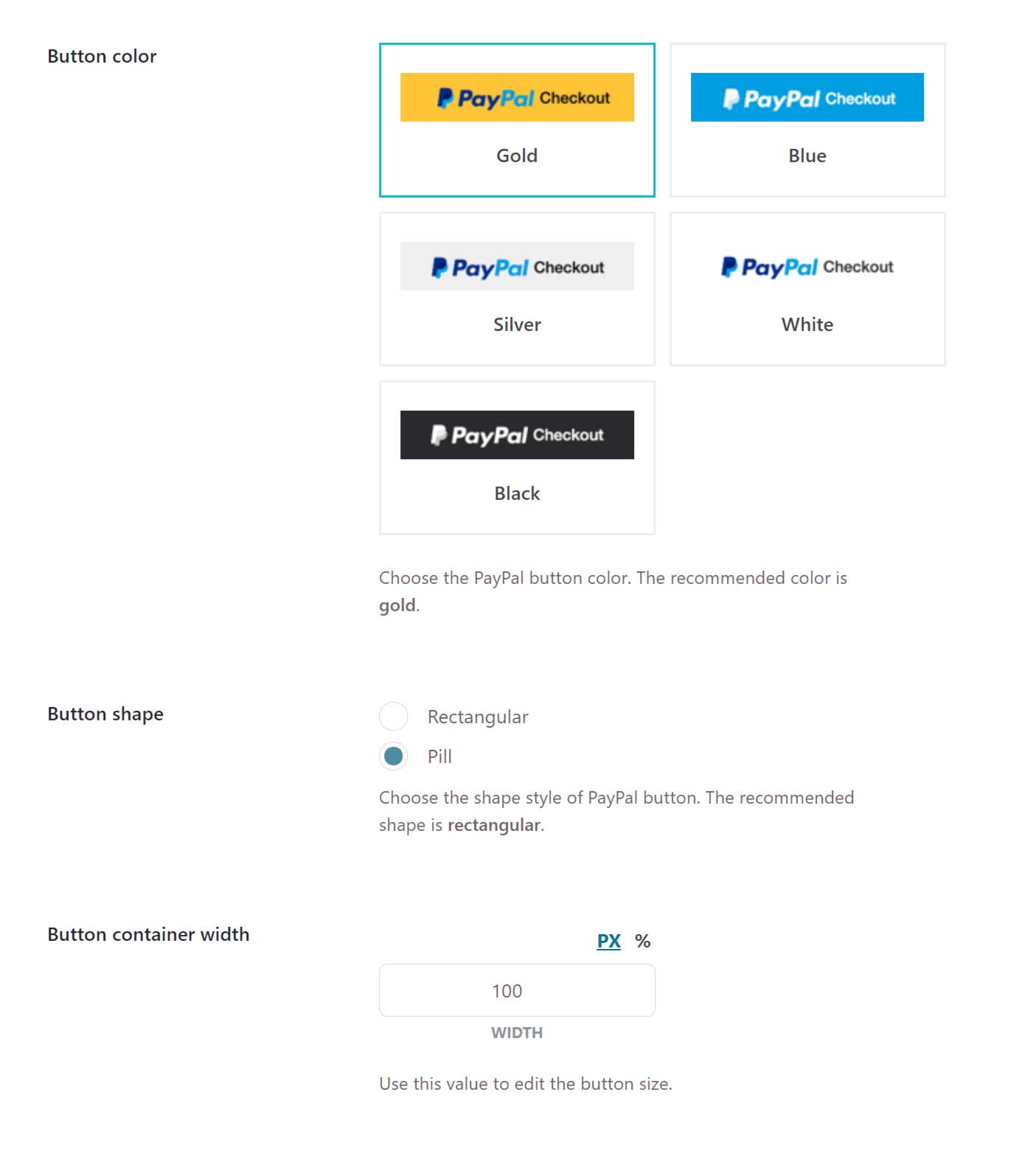
Button color: choose one of the available layouts.
Button shape: choose between Rectangular and Pill

Button container width: choose the size of the button. You can either set it in pixels or as a percentage.
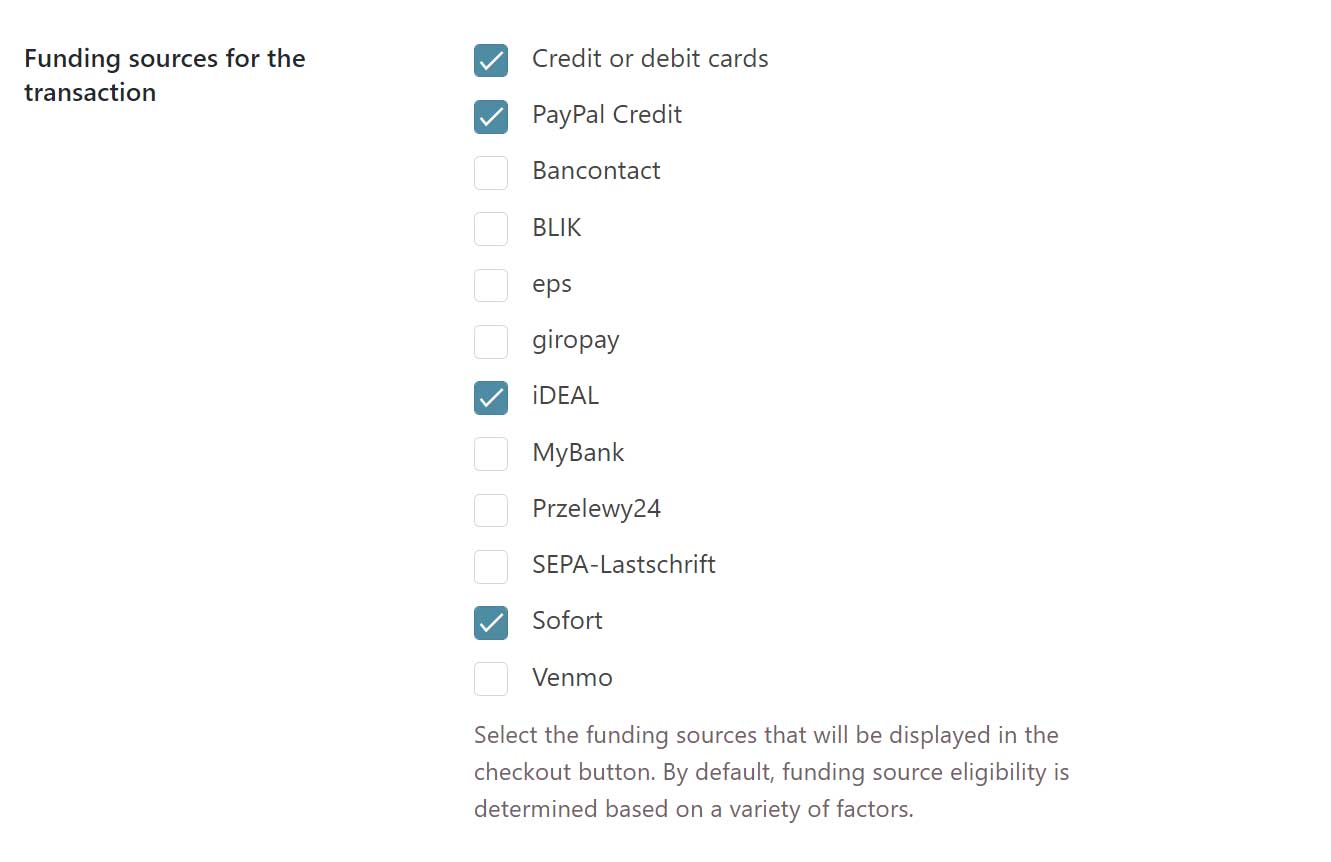
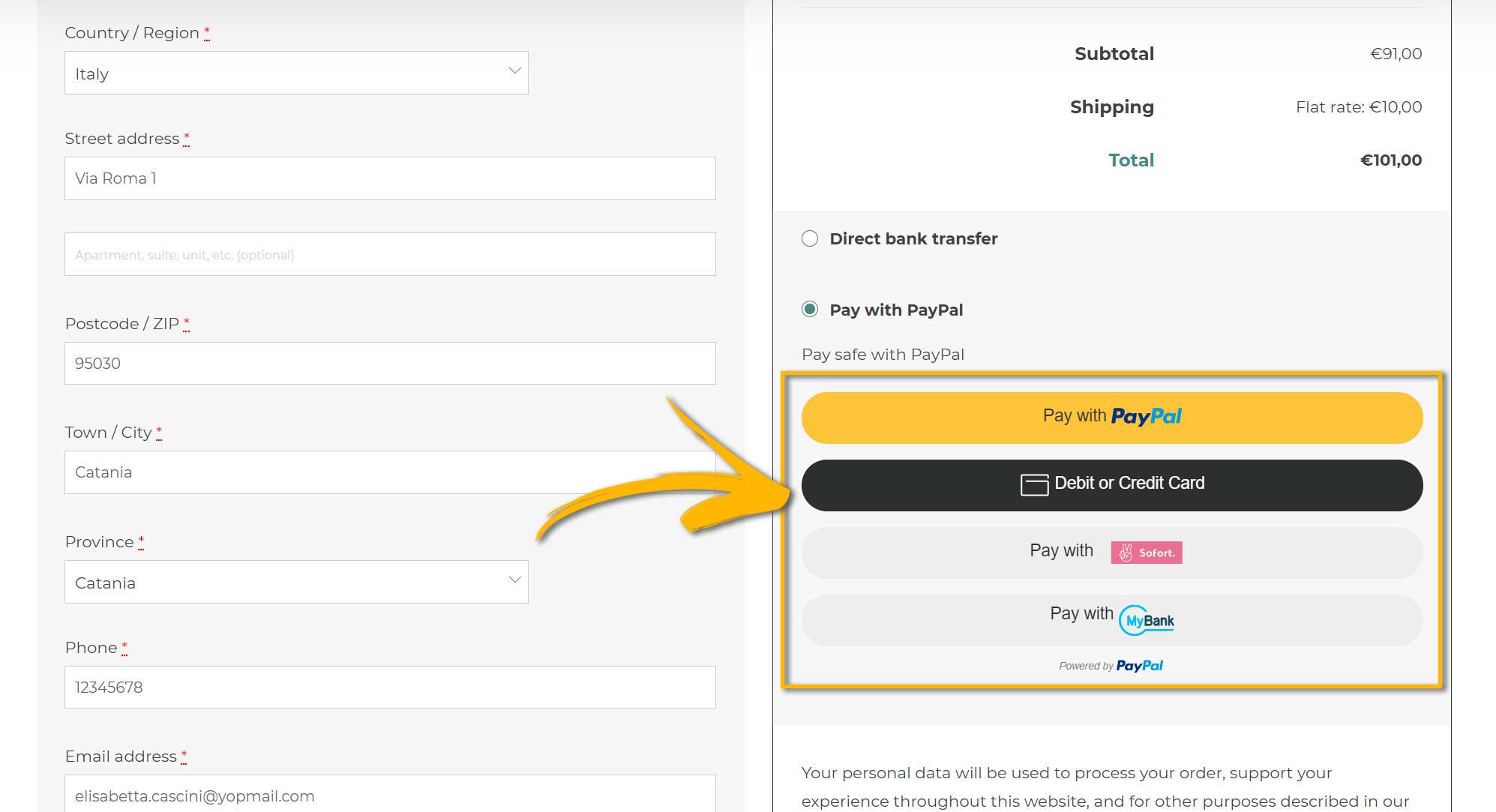
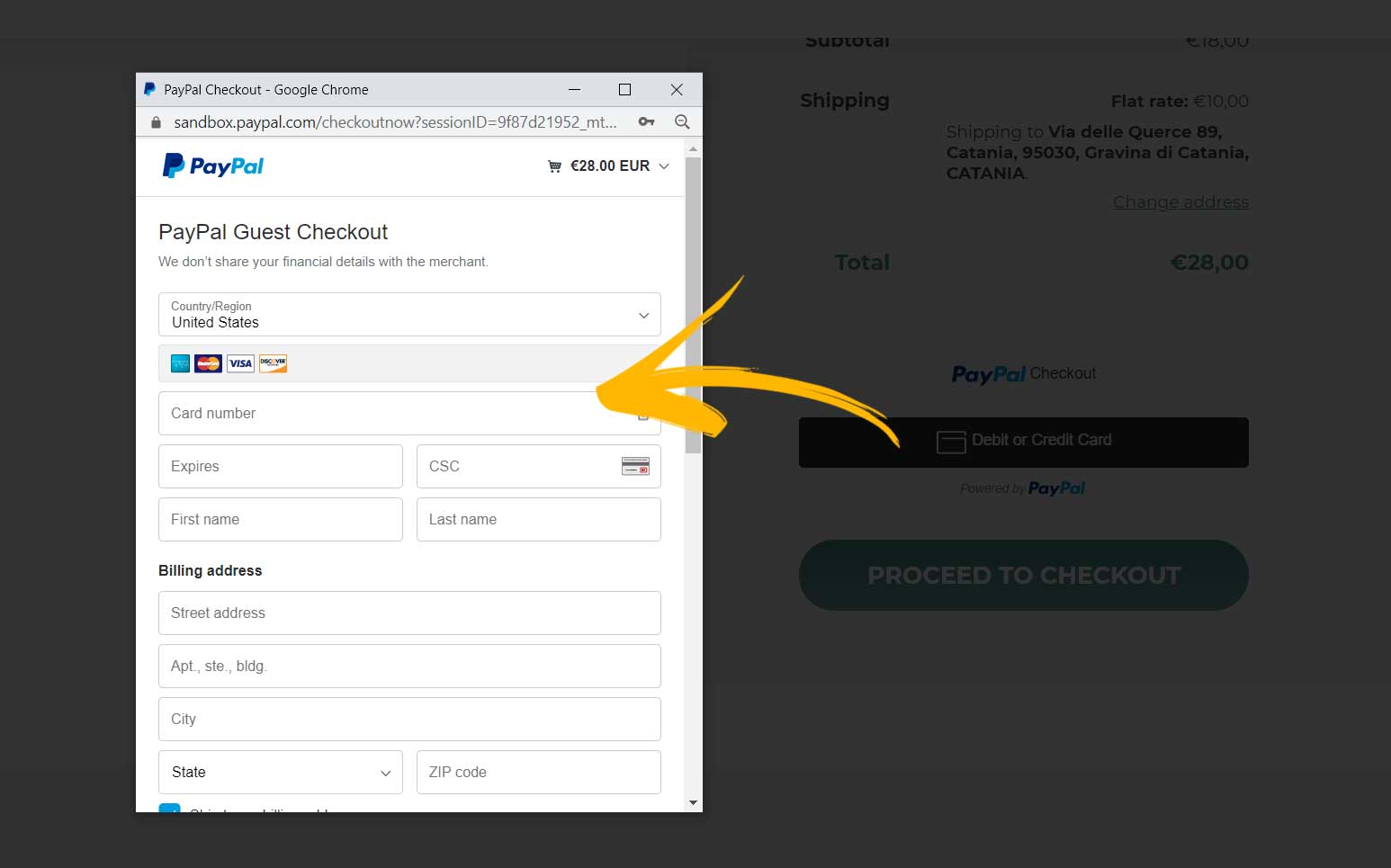
Funding sources for the trasaction: select the funding sources that will be displayed in the checkout button. By default, funding source eligibility is determined based on a variety of factors, like for example the billing country of your customers.
So, for example if the funding source iDEAL is not available in Italy, even if it’s selected in this list, it will NOT show up to your Italian users.
The supported funding sources are:
- Credit or debit cards
- PayPal Credit
- Bancontact
- BLIK
- eps
- giropay
- iDEAL
- MyBank
- Przelewy24
- Sofort
- Venmo
Please, note:
– PayPal is available on the product page, on the Cart page and in Checkout.
– Credit or debit card powered by PayPal is available only on the Cart and Checkout page.
– All the other available payments are only visible on the Checkout page.
– PayPal is available on the product page, on the Cart page and in Checkout.
– Credit or debit card powered by PayPal is available only on the Cart and Checkout page.
– All the other available payments are only visible on the Checkout page.
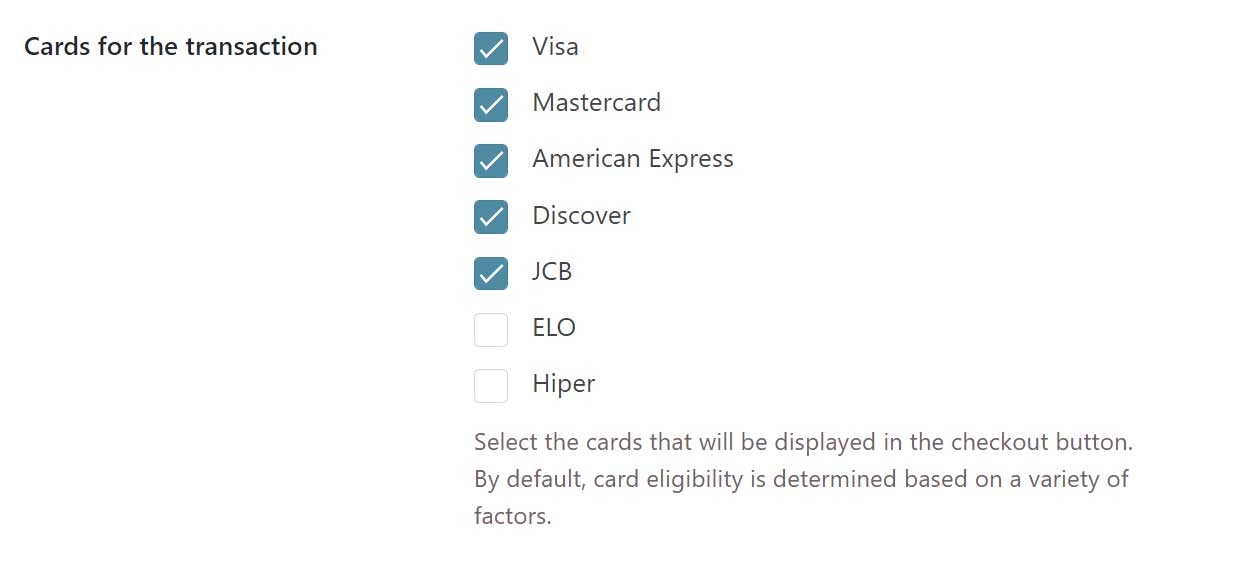
Cards for the transaction: Select the cards that will be displayed in the checkout button. By default, card eligibility is determined based on a variety of factors, like for example the billing country of your customers.
So, for example if JCB is not available in Italy, even if it’s selected in this list, it will not be available for payments from Italian users.
The supported cards are:
- Visa
- Mastercard
- American Express
- Discover
- JCB
- ELO
- Hiper
Custom Credit Card
For stores based in the US, UK, Italy, Spain and France, the plugin will automatically show the additional tab Custom Credit Card.
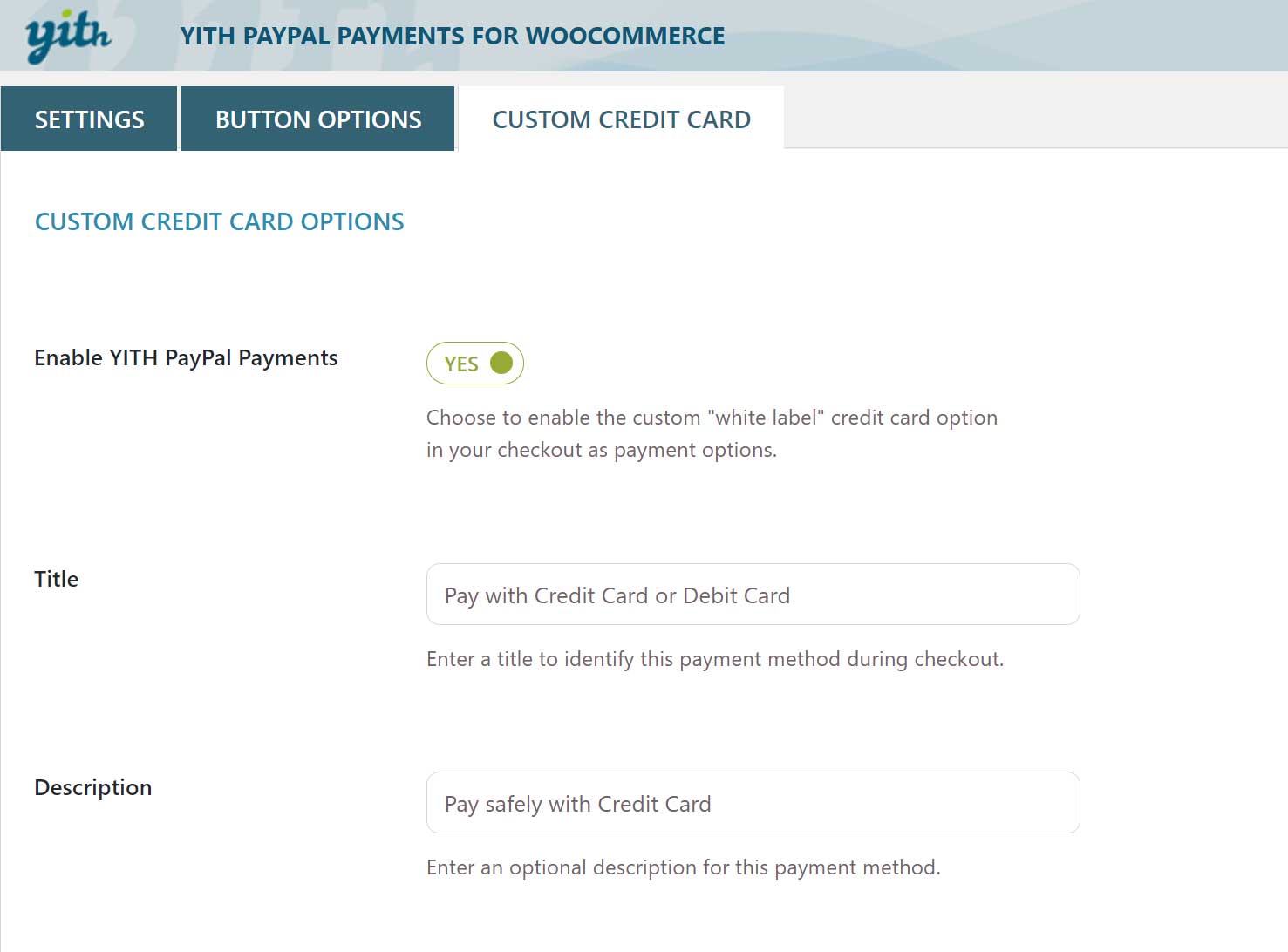
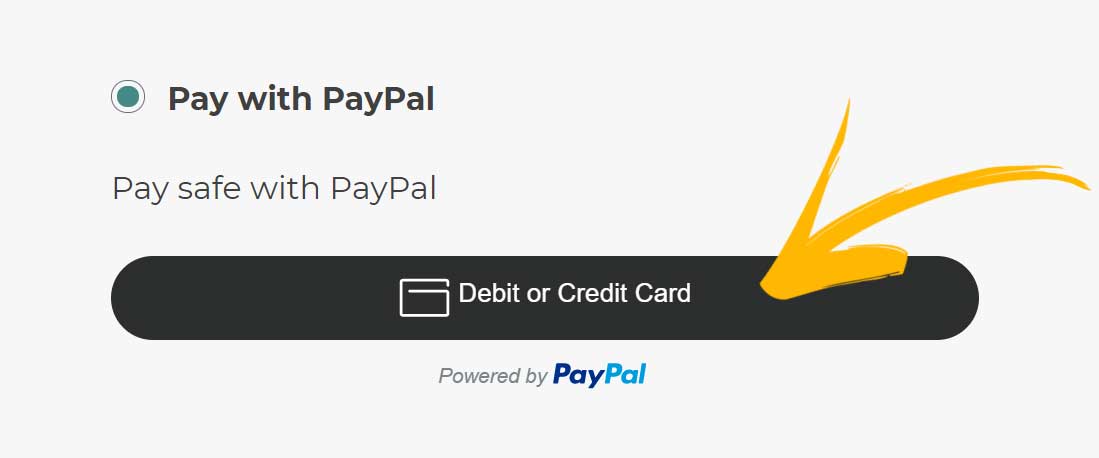
Here you can set up a white-labeled, non-branded credit card payment method, so your customers will not see that it is handled by PayPal, set up its title and description as it will appear in the checkout.
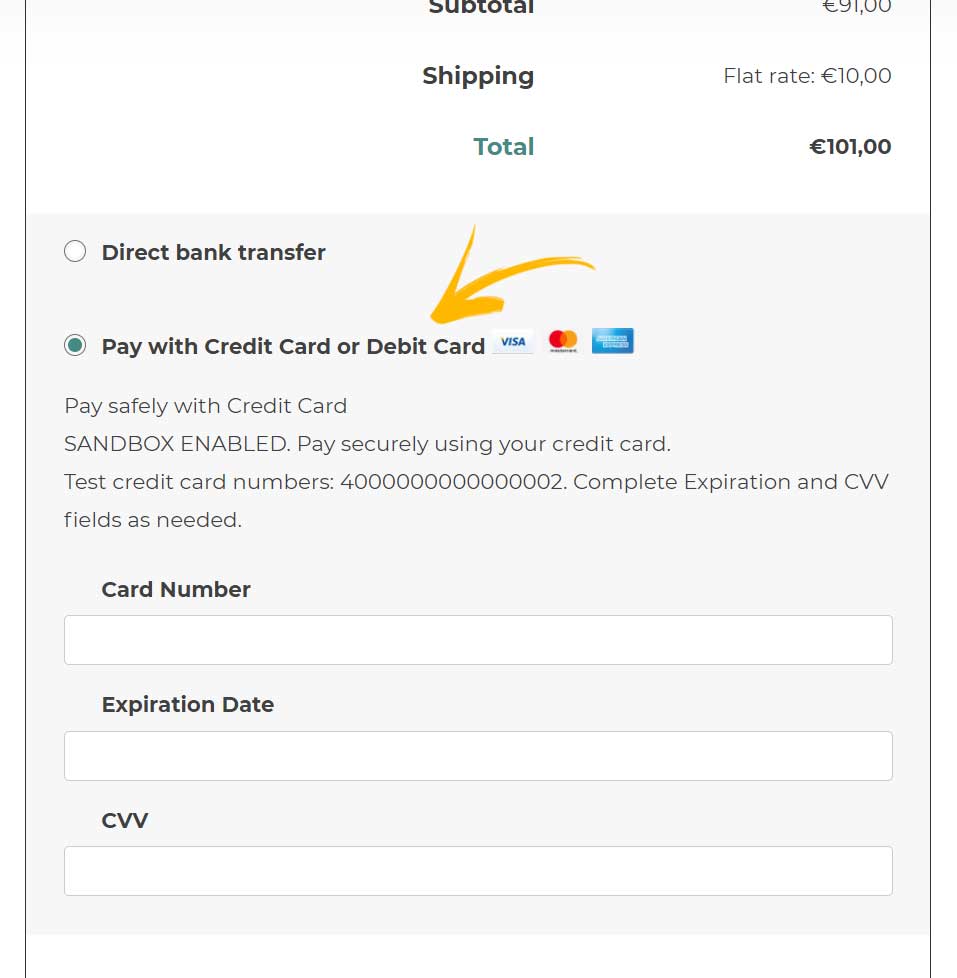
Please, note that if you activate this custom credit card, the Credit card option in the funding sources will not be visible, even if enabled.
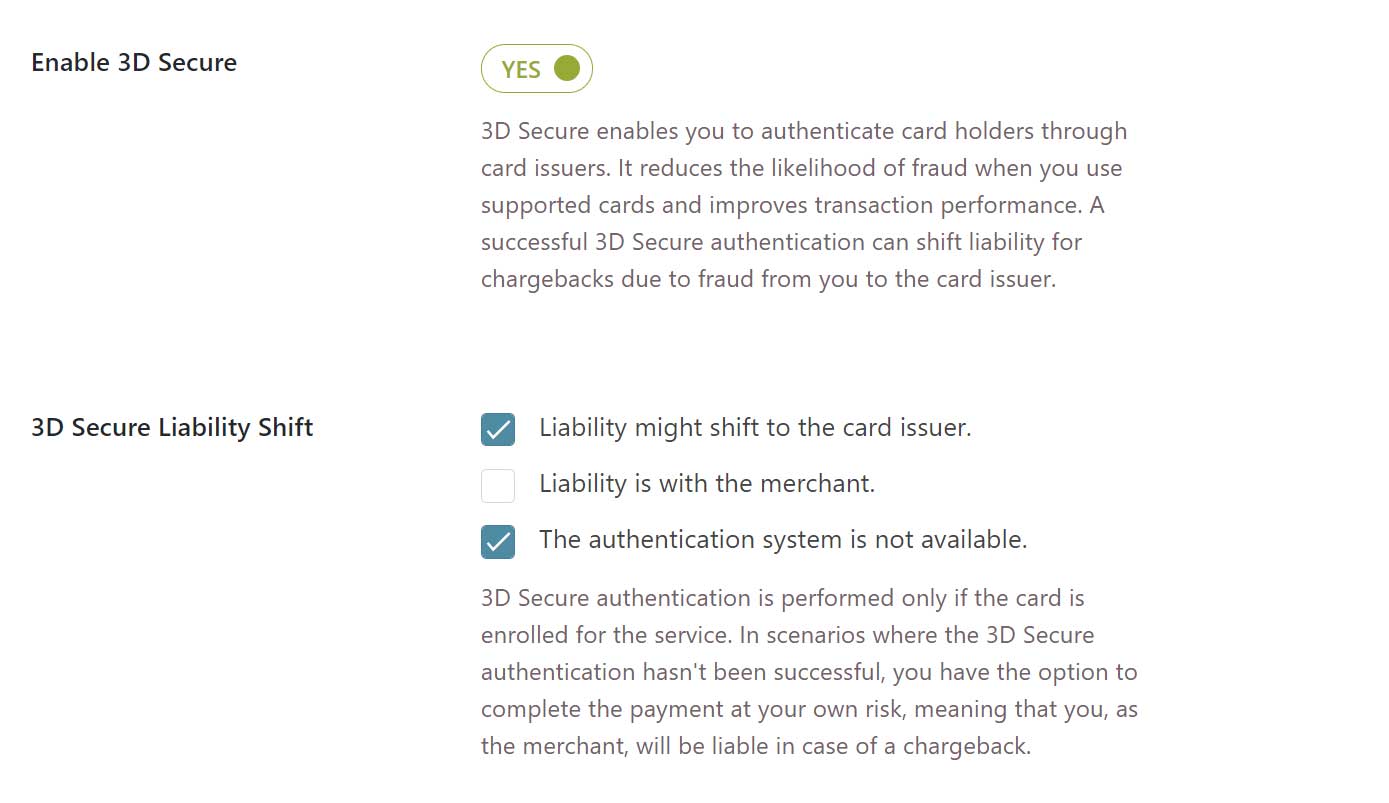
3DSecure and liability
Here you can also enable the 3DSecure option and its liability shift choosing among:
- Liability might shift to the card issuer.
- Liability is with the merchant.
- The authentication system is not available.
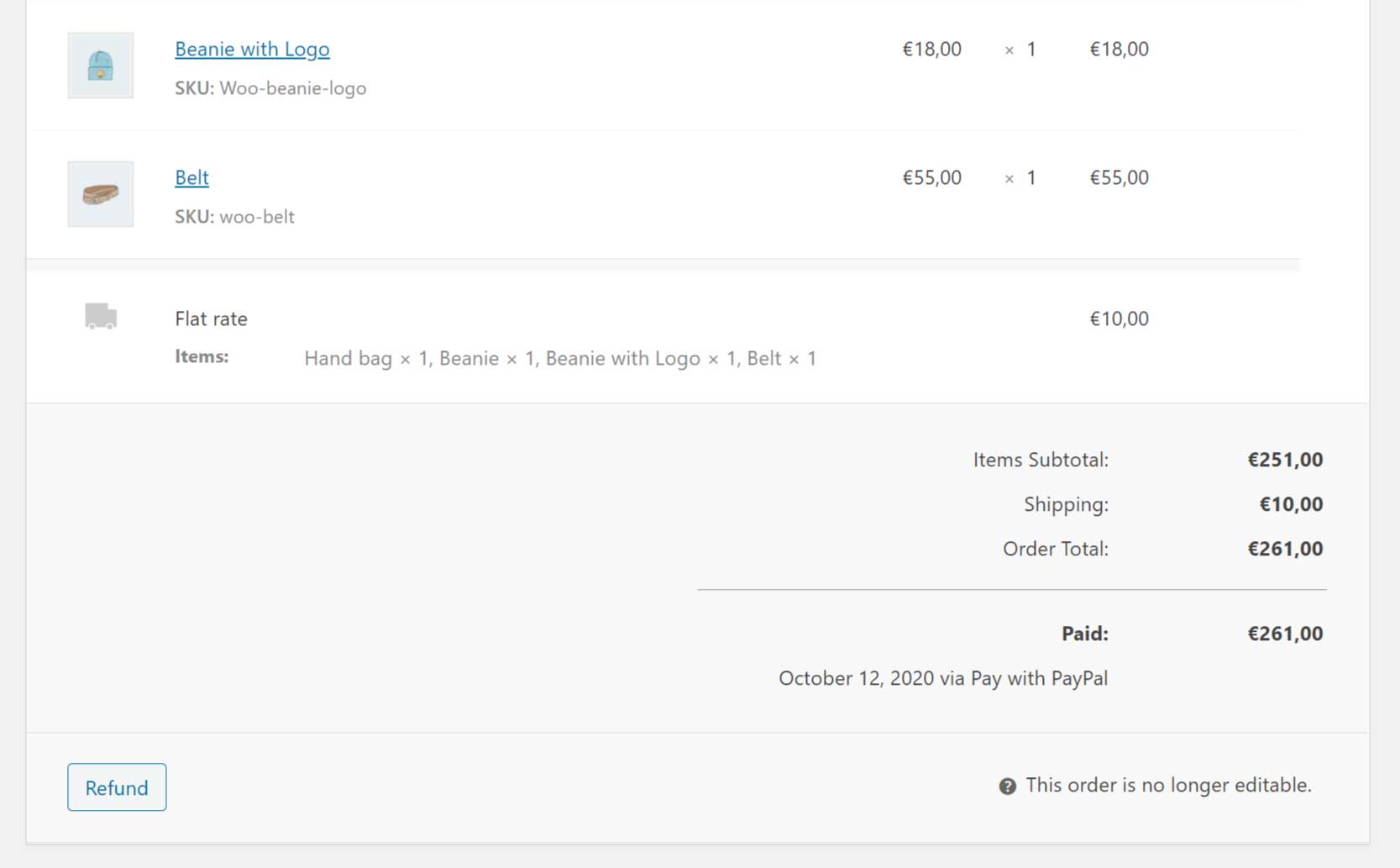
Refunds
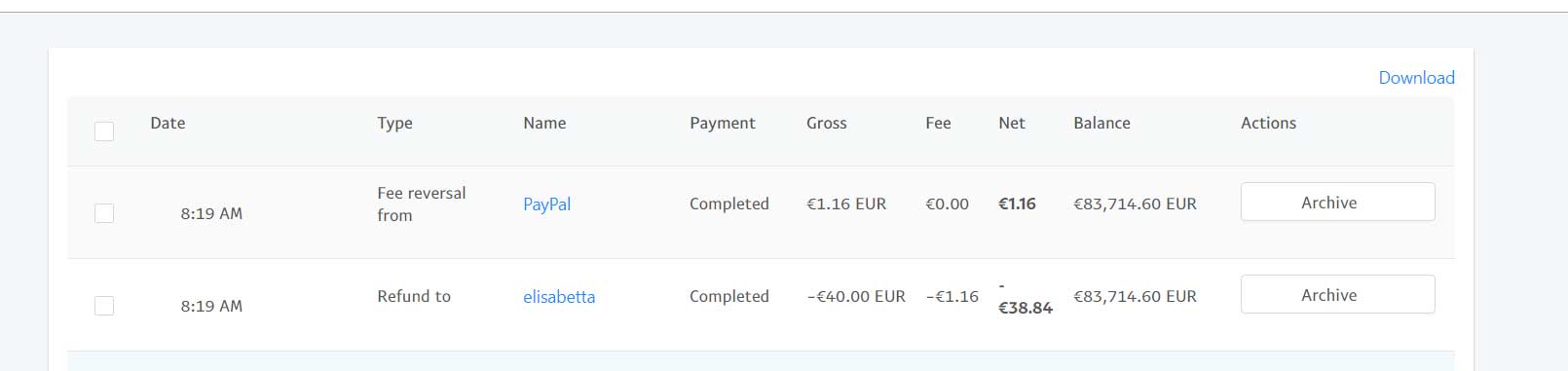
If you want to refund an order paid with YITH PayPal Payment, just open the order details and click on the Refund button that you find in the order recap metabox.
You can choose whether to refund the full amount or a partial amount.
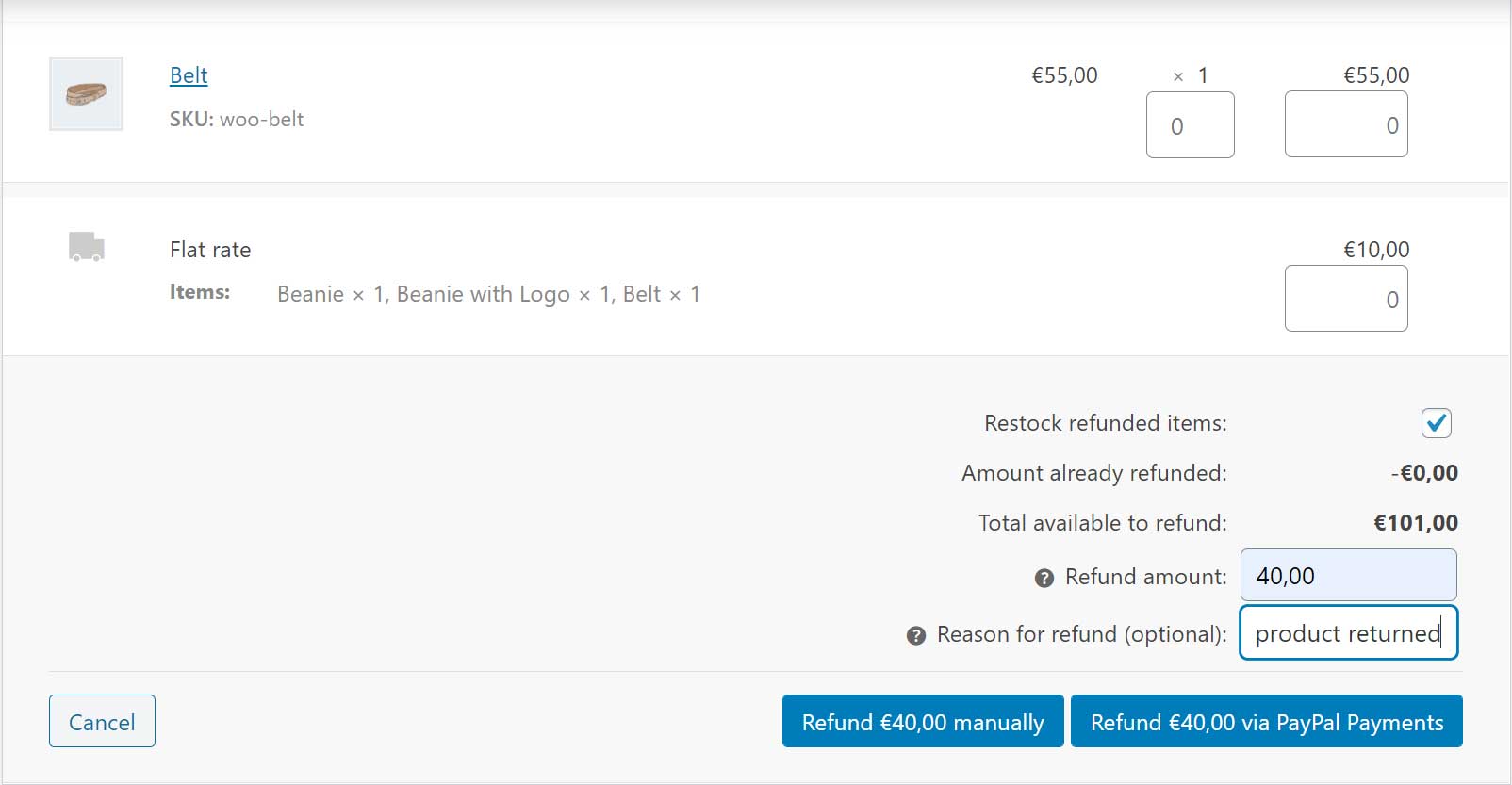
The transaction number will appear in the order details and it will be automatically synced with your PayPal account, so, you will be able to see the refunded amount there as well.
Partial payments and void payment option
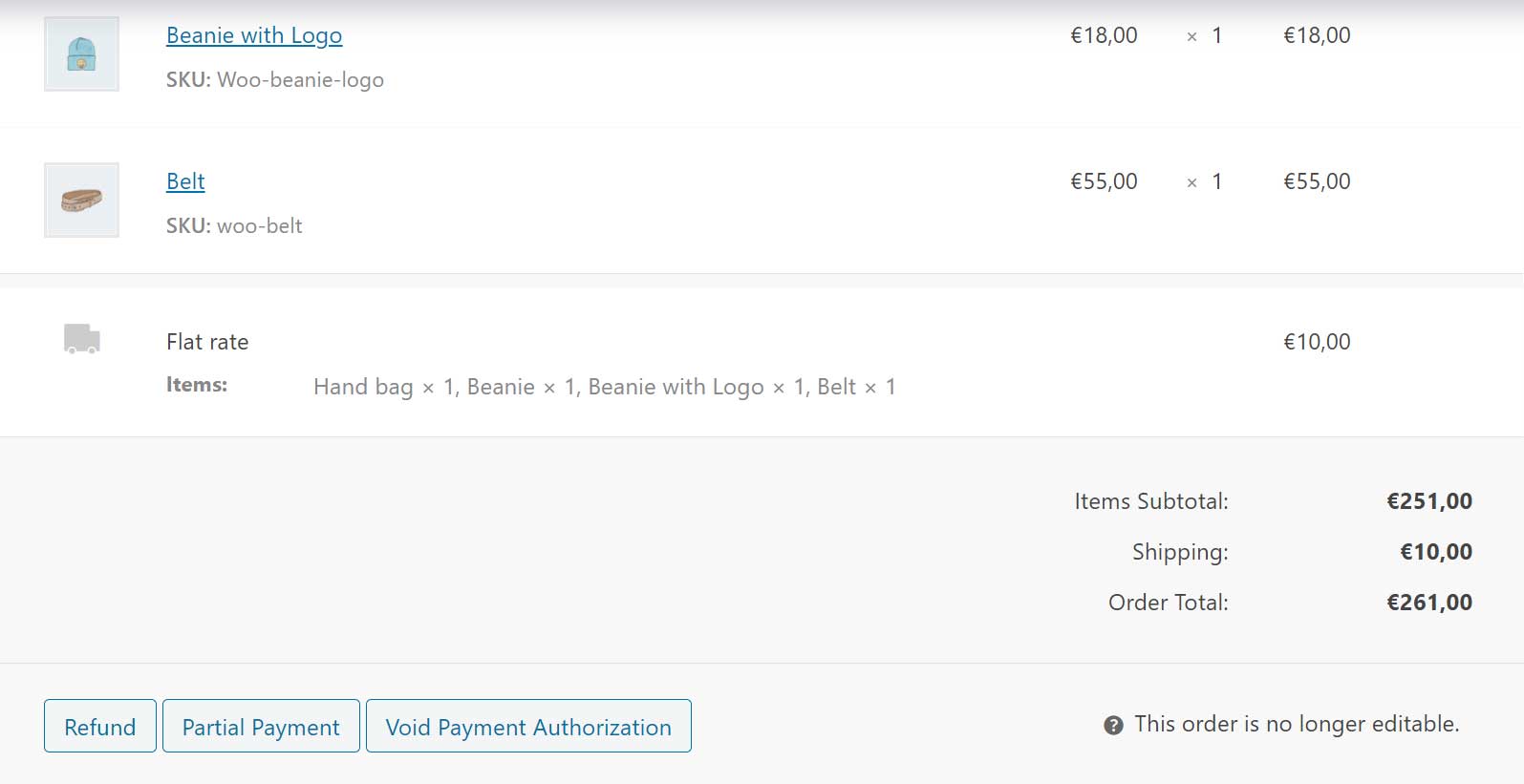
When you pre-authorize the transaction, you also have the option to charge the amount in multiple partial payments (but always within the 30-day expiration window) or to void the payment.
From the order details, scroll down to the order total section, where you will find the following two buttons:
- Partial payments
- Void payment
1. Partial payment
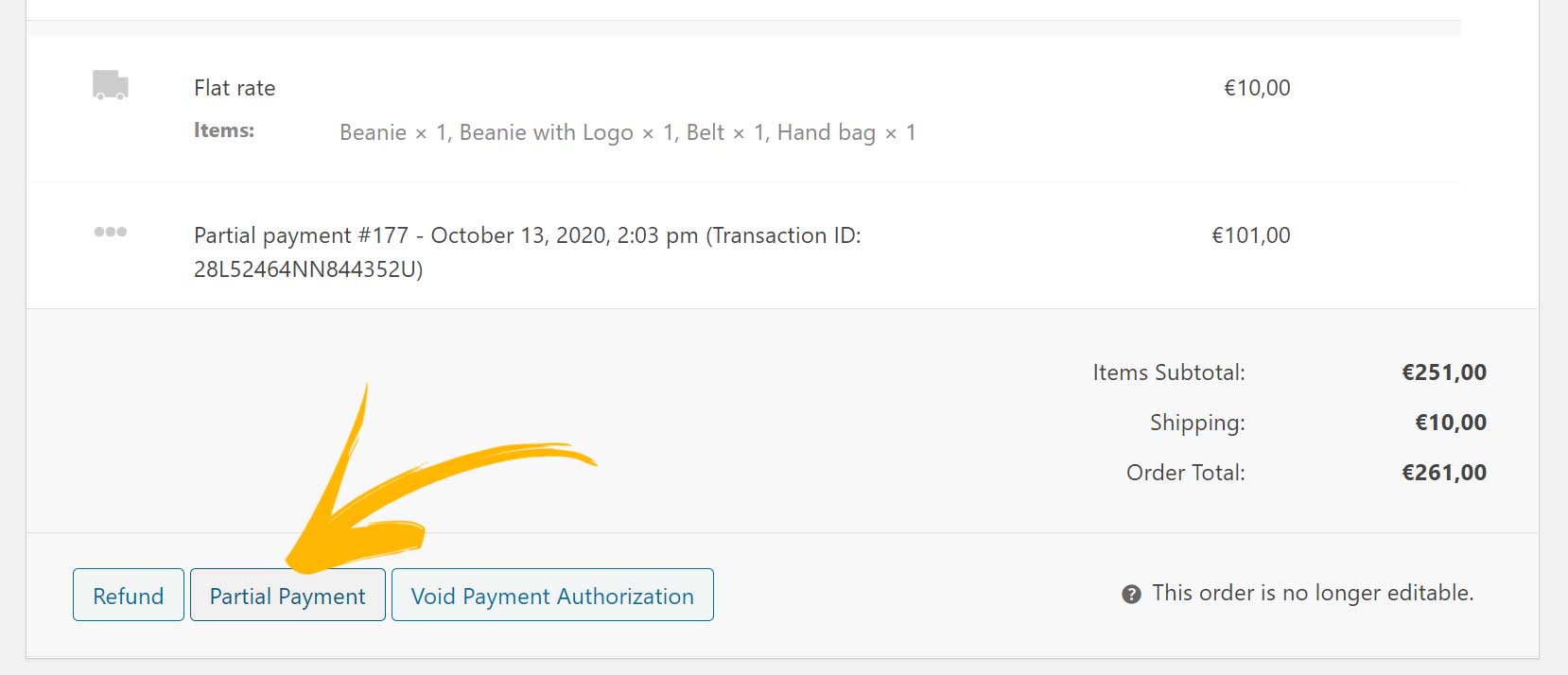
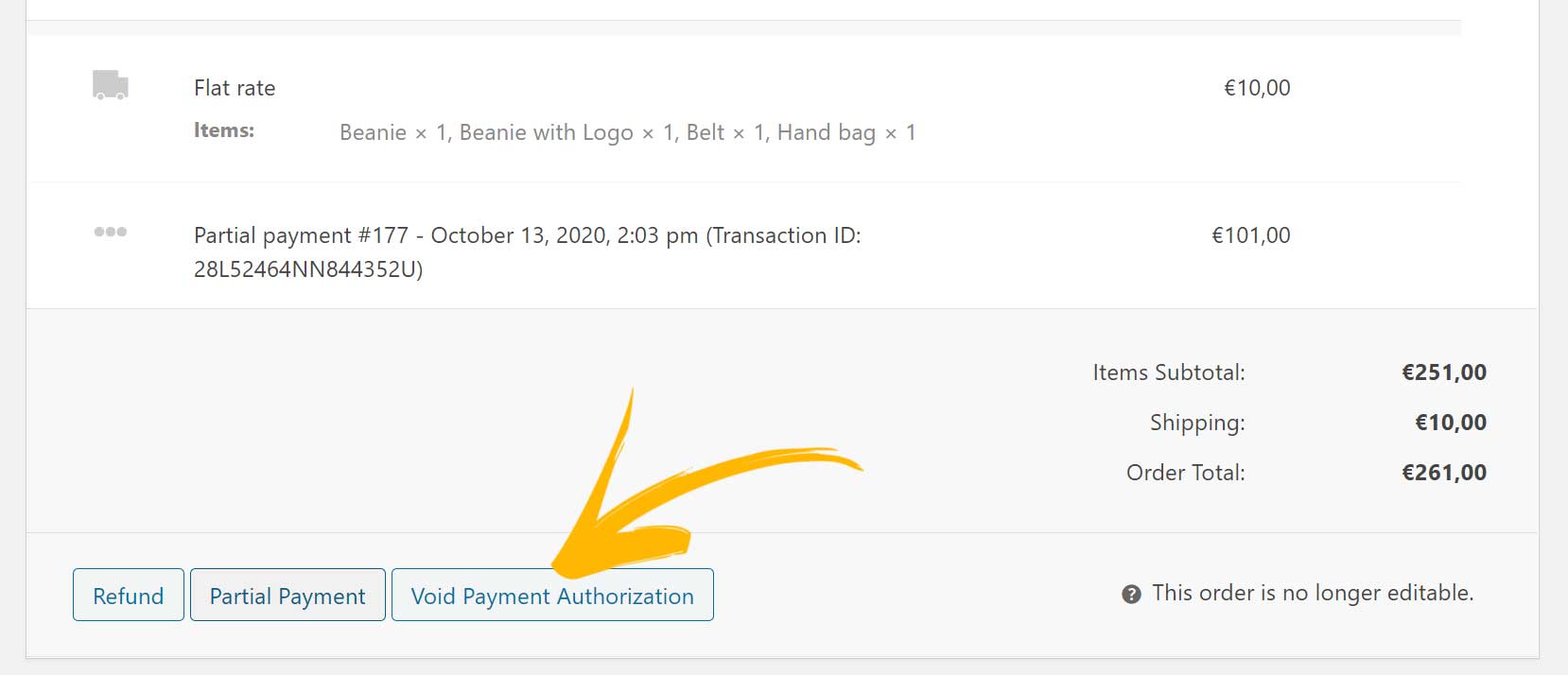
When the order is pre-authorized, you can also charge your users in steps and decide for partial charges. This is extremely useful, if you need to charge your users only when the item is shipped and you have more than one product in the same order that will be shipped at different times.
To charge a partial payment, just open the order details and click on the Partial payment button that you find in the order details:
Enter the amount you want to charge (for example the cost of the first product you are going to ship) and click on Pay via PayPal Payments.
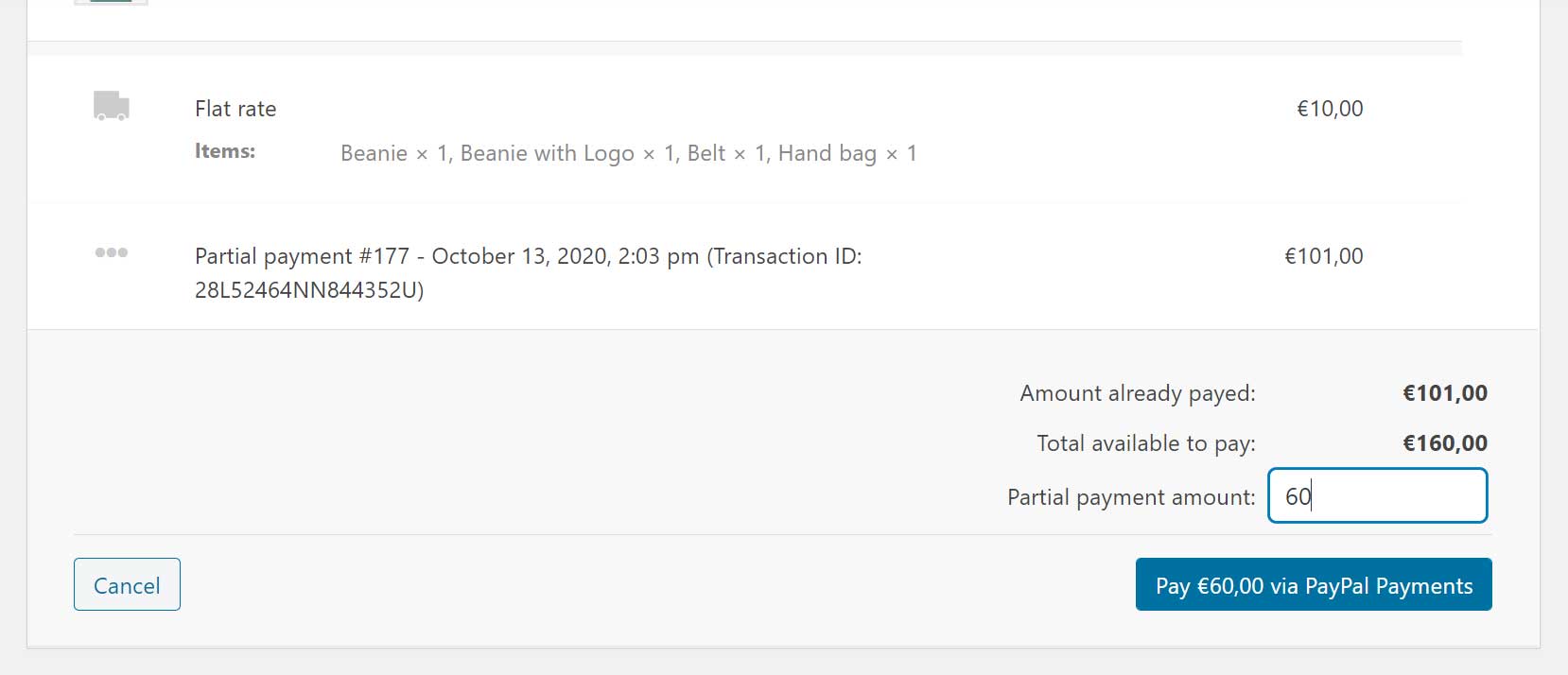
A transaction will go through and will automatically appear in your PayPal account too. Every action from your WP or from your PayPal account will be synced.
2. Void payment authorization
When an order has been pre-authorized, you will also be able to void the authorization and make sure that no charges are made. This action is both available from the order details and from your PayPal account. The two systems will be synced immediately.
To void a payment authorization from the order details, just open the order and click on Void payment authorization.
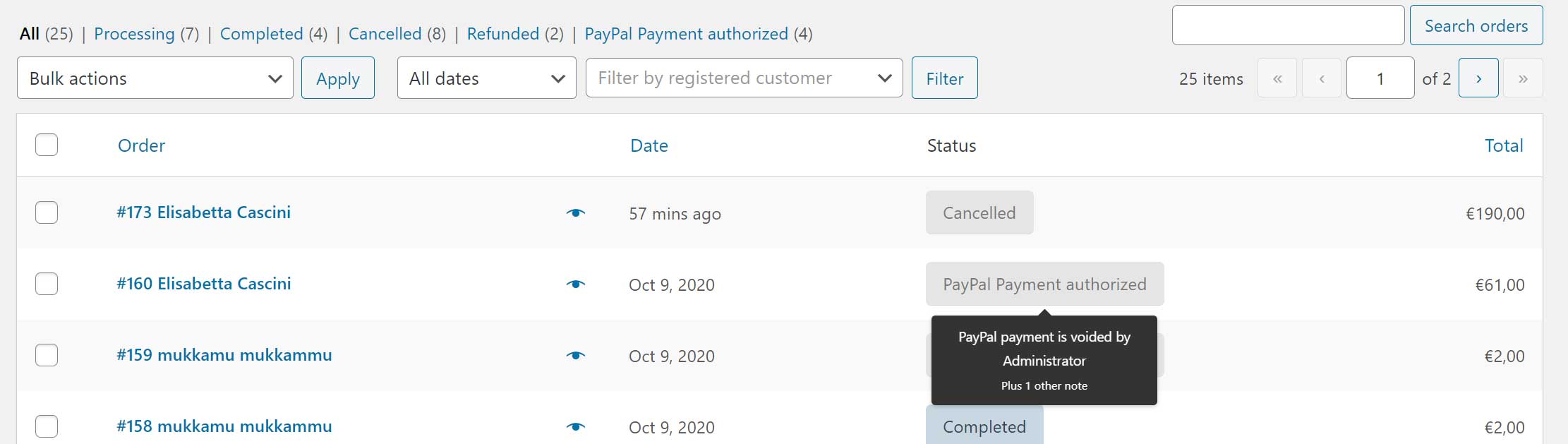
This will be reflected in your PayPal account as well.